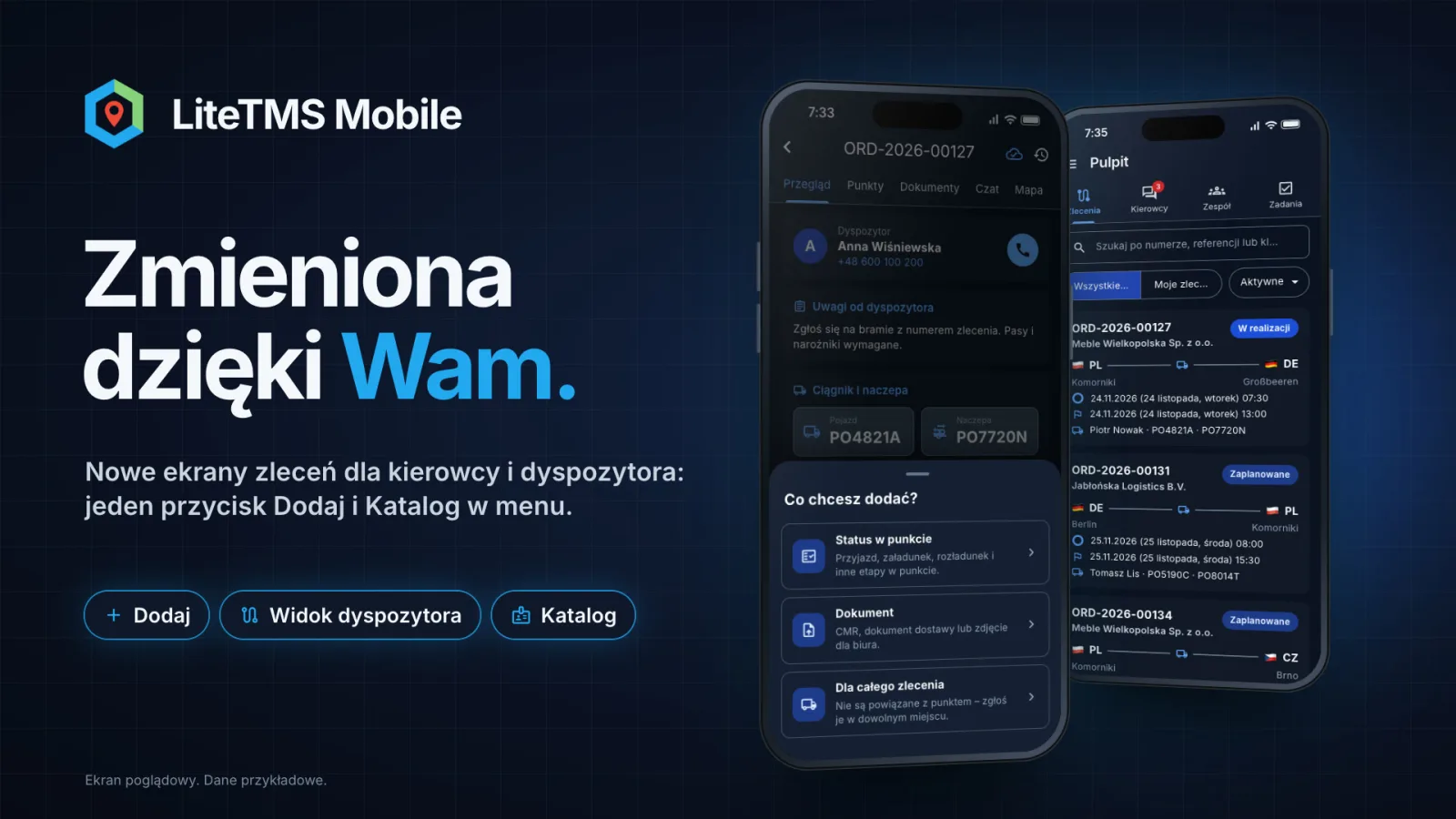
We have redesigned the order screens of LiteTMS Mobile, the app your drivers and your office use. A driver who opens an order now sees the dispatcher with a call button, the notes from the office, the truck and trailer plates and the trip on the first screen, and sends a status or a document such as a CMR from one Add button. Dispatchers get their orders in the same app, and a new Look up section in the menu holds your employees, vehicles, trailers and contractors.
The film is narrated in Polish.
Why we rebuilt the order screens
We listen to what drivers and offices tell us about LiteTMS Mobile, and a good app is not enough for us. A driver uses it at a ramp or a gate, often while someone waits for the paperwork, so an order has to answer the usual questions at a glance, and the thing the driver came to do has to be easy to find.
The redesign follows one rule: everything has one place. The Overview tells the driver what the job is. The Points tab is where the work at each stop happens. The Map shows the way, with the legs under it. And one button adds a status or a document.
What the driver sees first
Open an order and the Overview starts with four cards:
- Dispatcher. The person handling the order, with a button that calls them.
- Notes from dispatch. What the office wrote for this order, for example which gate to report to or what the load needs.
- Truck and trailer. The plates of the vehicle and the trailer on this order.
- Trip. Where the order starts and ends, the date, the number of points, the planned time and distance when the office has calculated the route, and buttons that open the points and the map.
The list of points moved to its own tab. The route the office saved is still the one the driver sees and follows on the map (how that works).
One Add button for a status or a document
On the Overview, Points and Documents tabs, an order now has one Add button in the corner. It asks one question, "What do you want to add?", and offers three answers: a status at a point, a document, or something for the whole order.
Sending a CMR takes four steps. The driver picks Document, then the point it belongs to (or the whole order), then the type (CMR, delivery confirmation, invoice, photo or another document), then Take photo. The file appears at the top of that point's "Sent from this point" list, newest first, and the point shows how many things went out from it, for example "3 sent".
Without signal, what the driver sends waits on the phone and goes out once the connection is back. The status tiles on each point are still there for a one-tap update; the Add button puts statuses and documents behind one familiar button on every tab where the driver reads the order.
Orders for dispatchers, in the same app
Office staff who sign in to LiteTMS Mobile and may see orders in LiteTMS find the company's orders on the first tab of their workspace, next to the chats with drivers (the dispatcher's chat), the team chat and the to-do list. The list has a search by order number, reference or client, a switch between All orders and My orders (the orders where you are the dispatcher), and a status filter. Each card shows the route as two countries and two towns, the loading and unloading dates, and the driver with the truck and trailer plates.
One tap opens the order laid out like the driver's: the client with the status and priority, the points of the route, and Driver and vehicle with both plates and the driver's name. The Points and Map tabs are there too. The app shows the order; to change it, Open in the browser takes you to the full system.
Look up: employees, vehicles, trailers and contractors
The menu of an office user has a new section, Look up, with four lists: Employees, Vehicles, Trailers and Contractors. Each list has a search, and each entry opens a card you can read but not change:
- An employee has Call and Email buttons, every phone number and e-mail address with a copy button, and the vehicle the person is driving now.
- A vehicle shows its type, make and model, year, VIN (with a copy button), gross weight and payload, and who is driving it now, with a button to call them.
- A trailer adds the body type, pallet places and temperature range, where your records have them.
- A contractor holds its addresses, contact people, phone numbers and e-mails, and a warning when your company has put it on its blacklist.
The vehicle a person is driving now, and "Driving it now" on a vehicle's card, appear while that driver's phone is tracking the vehicle in LiteTMS Mobile, the optional GPS tracking mode. Each list appears only to people who may see it in LiteTMS, for their own branches, and looking things up has no charge of its own.
How to get the new screens
The new screens come with the latest LiteTMS Mobile in the App Store and Google Play: update the app on the drivers' and the office phones. What each person sees still follows their permissions in LiteTMS.
We are not done with the app. Tell us what to improve next: write to us. If your company does not use LiteTMS yet, register and try it on one of your own orders.
よくある質問
- Where is the Add button in LiteTMS Mobile?
- In the bottom corner of an order, on the Overview, Points and Documents tabs. The Chat and Map tabs do not have it: the message field and the map's own controls take that place.
- How does a driver send a CMR from the app?
- Tap Add, choose Document, pick the point (or the whole order), choose CMR and take the photo. The document appears at the top of that point's sent list and reaches the office once the phone has sent it.
- Can dispatchers see orders in LiteTMS Mobile?
- Yes. Office staff who may see orders in LiteTMS get the company's orders in the app with a search, All orders and My orders, and a status filter, and can open each order to read it. Changes are made in the browser.
- What is in Look up?
- Employees, vehicles, trailers and contractors, each with a search and a read-only card with phone numbers, e-mail addresses and the details you usually need while an order is on the road. Who sees which list follows that person's permissions in LiteTMS.
- What do drivers need to do to get the new screens?
- Update LiteTMS Mobile from the App Store or Google Play. Their sign-in and their orders stay as they were.
最新情報をチェック
良質な情報を、もっと手軽に。
Googleで優先ソースにLiteTMSを選択すると、当社の記事をより見つけやすくなります。
GoogleでLiteTMSを選択Googleで選択を確定 · 新しいタブで開きます