
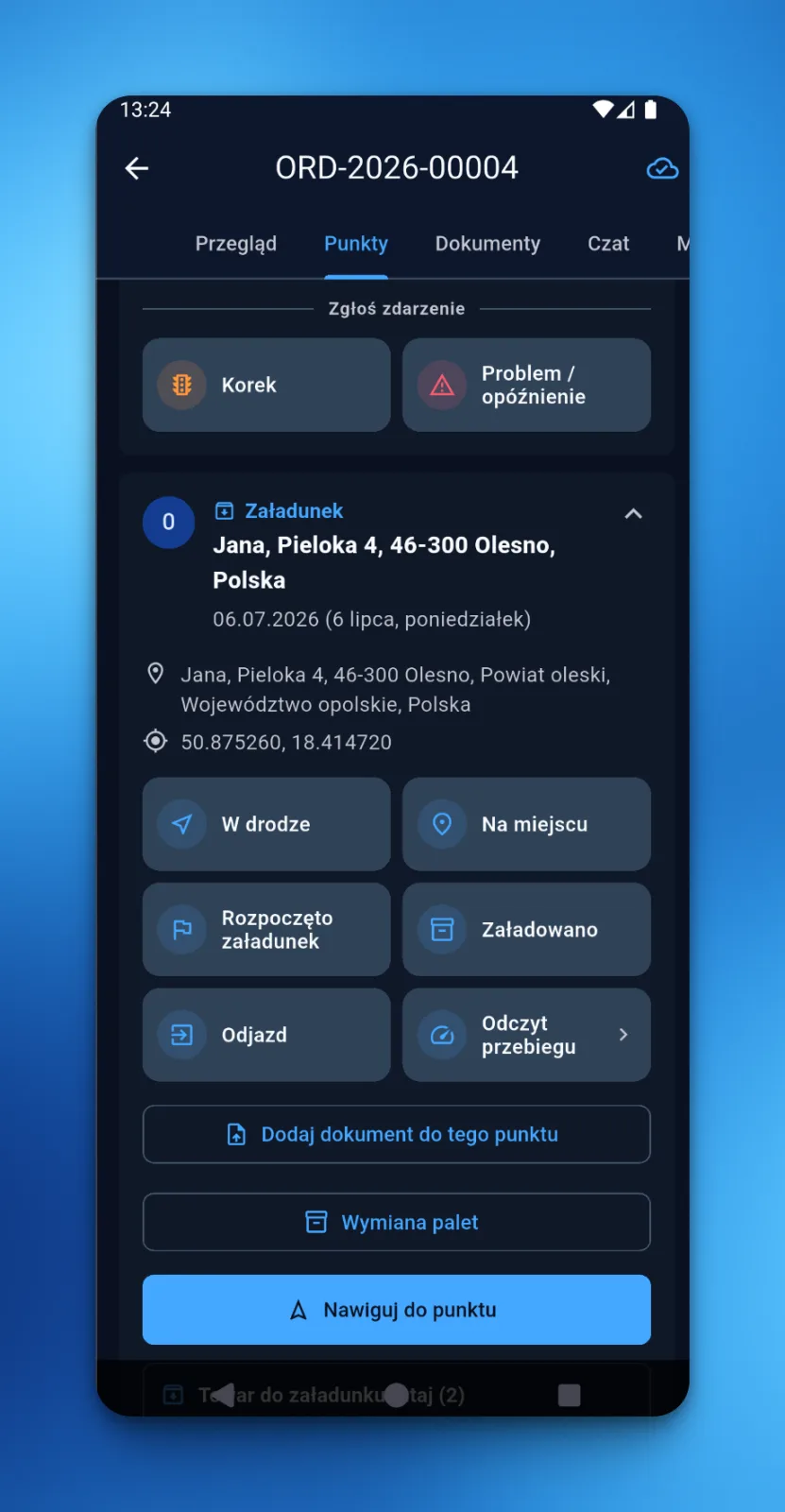
In LiteTMS, a driver reports every step of a stop with one tap in the LiteTMS Driver app: on the way, on site, loading started, loaded, departure. The tap takes a second, works with no signal, and the order in the office updates the moment it happens. Nobody has to call anybody.
The call everyone in transport knows by heart
"Where are you? Loaded yet?" If you dispatch trucks, you make that call. If you drive one, you get it. Ten times a day, on a good day.
Every one of those calls interrupts two people at once. The dispatcher stops working the board to dial. The driver answers behind the wheel, or at a ramp with a forklift beeping next to him, and gives an answer from memory. Then the dispatcher types what she heard into a spreadsheet, a chat, or nowhere at all. A week later, when a client asks what time the truck actually left the loading site, the honest answer is: whatever somebody remembers.
The information was never the problem. The driver always knew where he was. The problem was the transport of that information: a phone call, a human ear, and manual retyping.
What the driver sees at a stop
The driver opens the order in LiteTMS Driver and goes to the Points tab. Each stop shows its address, its date, and a grid of large status tiles. On a loading stop the tiles say things like on the way, on site, loading started, loaded, departure. An unloading stop offers the unloading set. The app shows only the statuses that fit that stop, so there is nothing to scroll through and nothing to pick wrong.
One tap on a tile and the status is sent. Statuses that carry a value, like a mileage reading, open a short form instead, and the tile says so with a small arrow.
Reports live in their own section above the workflow tiles: traffic jam, problem or delay. They are deliberately separated, because a report is something that happens to the driver, not a step he is expected to complete. He never has to wonder whether "problem" was part of the plan.
What lands in the office
Every tap arrives on the order as a timestamped event: which stop, which status, what time. The dispatcher watches the order move through its stops without touching the phone. Loading started at 8:12, loaded at 8:47, departed at 8:55. When the client calls, the answer is on the screen, not in someone's memory.
And because the status is data rather than a sentence spoken on a bad connection, there is nothing to mishear and nothing to retype. The order is its own record.
Dead zone? The status waits
Ramps love basements and forests love dead zones, so the app assumes signal is optional. A status tapped offline is stored on the phone and sent automatically when the connection returns. The tile immediately shows it as queued and locks, so the driver cannot accidentally send the same status twice while waiting for bars. He taps, puts the phone in his pocket, and drives. The app does the rest.
Location: a snapshot is not tracking
When a driver sends a status, the app records a one-time snapshot of the position at that moment, tied to that event. Tapping statuses never switches on any tracking by itself.
Live fleet tracking exists in LiteTMS too, as its own module. You can connect the GPS or telematics your trucks already carry, or use position sharing in the driver app, and watch every vehicle live on one map in the office. The difference matters: live tracking is something the company sets up and the driver knowingly turns on. It never rides along silently with a status tap.
What it costs
Nothing extra. The driver app is included, statuses are part of the orders workspace, and orders in LiteTMS are free and unlimited. Your drivers can tap statuses on every stop of every load and the meter never moves. A company account is free to register, and drivers can be on the app the same day.
If your stops also need proof, not only progress, see point tasks: photo and signature tasks attached to a specific stop.
Questions people ask
- How do drivers update order status in LiteTMS?
- They open the order in the LiteTMS Driver app, go to the Points tab, and tap a status tile on the current stop: on the way, on site, loading started, loaded, departure and similar. The status lands on the order in the office as a timestamped event.
- Which statuses can a driver send?
- The app shows the statuses that fit the given stop, so a loading stop offers loading statuses and an unloading stop offers unloading ones. Traffic jam and problem reports sit in a separate reports section, and statuses that need a value, like a mileage reading, open a short form.
- Does the driver app work without internet?
- Yes. A status tapped in a dead zone is queued on the phone and sent automatically when signal returns. The queued tile is disabled in the meantime, so the same status cannot be sent twice by accident.
- Does LiteTMS track drivers in the background?
- Not through statuses. Sending a status records only a one-time position snapshot tied to that event. Live fleet tracking is a separate GPS module: you connect your existing telematics or use position sharing in the driver app, which the company configures and the driver turns on knowingly.
- Does the driver app cost extra?
- No. LiteTMS Driver is included, and orders are free and unlimited, so status updates never add anything to the bill.
Keep in touch
Make room for better reads.
Choose LiteTMS as a preferred source to find more of our articles on Google.
Choose LiteTMS on GoogleConfirm your choice on Google · Opens in a new tab