
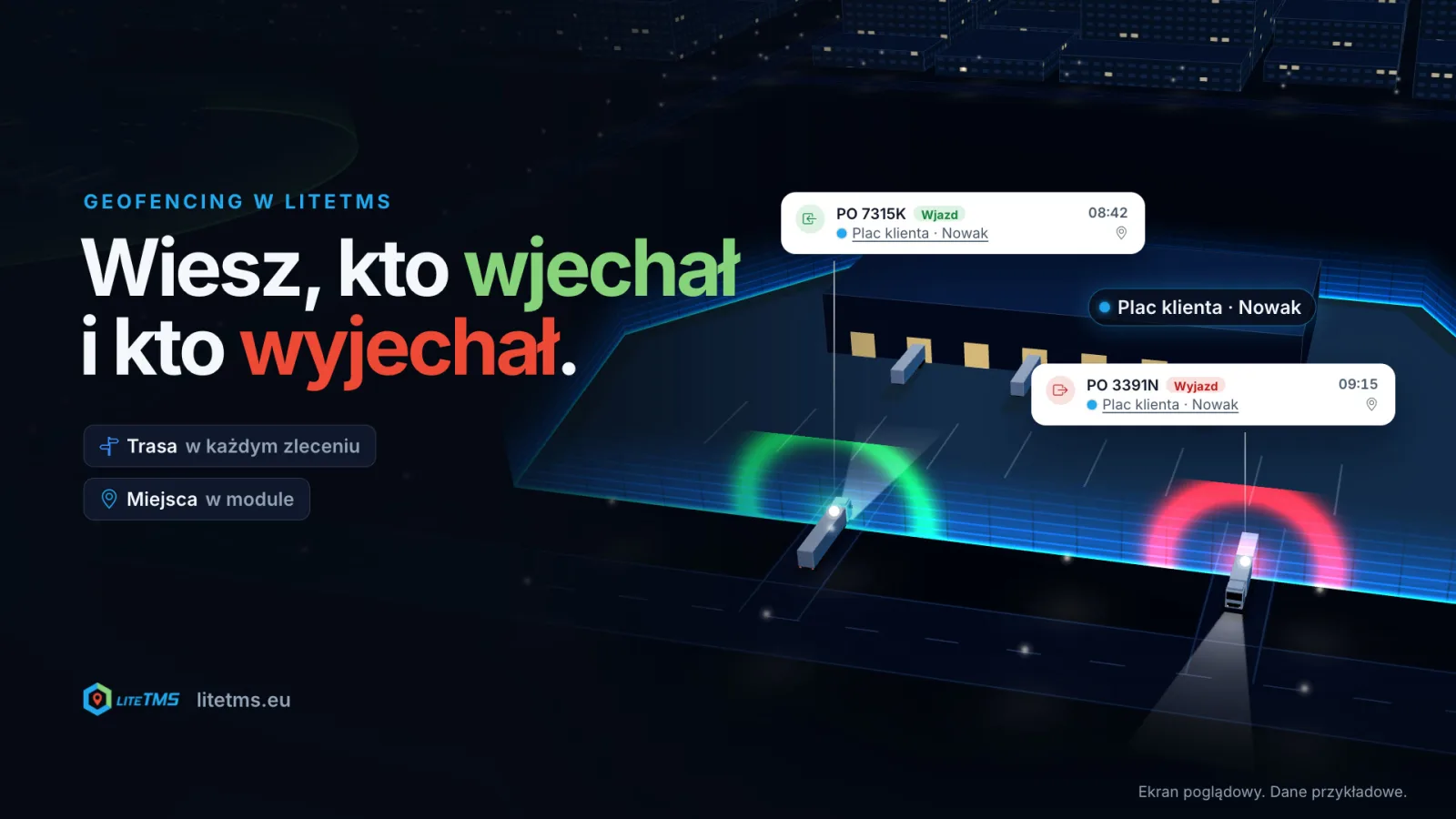
Geofencing in LiteTMS works on two levels. Every order includes it: a corridor along the planned route and a zone around each stop, an alert when the truck leaves the route, and an arrival time recorded from the GPS position. Fixed places that belong to no order, such as a customer's yard, your own depot or a truck park, are covered by the Geofencing module: you outline the place on the map, choose who gets the message, and see who drove in, who drove out, and when.
The film is narrated in Polish, with Polish captions.
A fence you can't see
"Is he there yet?" The customer asks, the boss asks, the warehouse asks. Answering usually means opening the map, finding the right truck and comparing its position with the address. Geofencing does that for you: it is a virtual fence on the map, drawn around a route or around a place. About once a minute LiteTMS checks which side of the fence every vehicle with a current GPS position is on, and records every crossing.
The position comes from telematics connected to LiteTMS, or from GPS tracking in LiteTMS Mobile when the driver has switched it on, the phone allows location access and the company permits it. Without a fresh position the fence detects nothing, and LiteTMS says so on the order and on the zone instead of staying quiet.
Route geofencing comes with every order
There is nothing to switch on. Every order has a Geofencing tab with two values. Corridor width is the allowed deviation on each side of the planned route, 1,000 m by default. Stop zone radius is the circle around each loading and unloading stop, 200 m by default. You can change both for the whole order, a single leg or a single stop. The defaults and the alert rules are set once in the company settings, so every new order starts with them in place.
The corridor needs a calculated route. If the route has not been calculated, or no longer matches the stops, corridor alerts cannot fire and the tab tells you so. Stop zones work without a route.
The arrival time records itself
When the truck enters a stop's zone, LiteTMS fills in the stop's actual arrival time, and when it leaves, the actual departure time. Along with the time it stores the position, plus the odometer and fuel level when the telematics provides them. A time recorded this way is marked Potwierdzone GPS (GPS-confirmed), so everyone in the office can see nobody typed it in after a phone call. If someone entered the time by hand first, the system does not overwrite it.
Stop arrivals, stop departures and corridor exits also appear in the order's list of recent geofencing events and in its history. When a customer asks about waiting time at unloading a week later, the times are on the order and each event opens on the map.
Off the route: SMS, email or a notification
You add alert rules to the order: leaving the route corridor, arriving at a stop or leaving a stop. Each rule has its channel, an in-app notification, an email or an SMS, and its recipients: chosen people or roles. If you pick nobody, the forwarder handling the order gets the message. For corridor exits you set a threshold, for example a notification on any deviation and an SMS only beyond one kilometre. A rule speaks once per excursion, not once a minute.
What happens when the truck returns to the route, and how LiteTMS counts the extra kilometres, has its own post: route corridor alerts and extra kilometres.
Fixed places: the Geofencing module
An order's corridor lives as long as the order. Some places, though, you watch all the time: a customer's yard that trucks from many orders visit, your own depot, the truck park where drivers take their breaks, a border crossing. That is what the Geofencing module is for.
In the module you draw a zone on the map: a circle around an address you search for, or a polygon you click out corner by corner. The zone gets a category (customer site, depot, restricted area, parking, service point, border crossing, or one of your own) and, optionally, the contractor it belongs to. You can share it with the whole company or only with chosen people and roles.
Then you add an alert. You choose whether it reacts to entry, exit or both, when it is active (around the clock, for a date range, or on chosen days and hours), whether it watches every tracked vehicle or only selected ones, and who gets the message: an SMS to a phone number, an in-app notification, or an email to people, groups or an outside address. Under the form, LiteTMS sums the alert up in one sentence, for example "SMS to +48 600 000 000 when any tracked vehicle enters or leaves Plac klienta · Nowak". The send-test button shows who the message actually reaches before the first truck pulls up at the gate.
Activity: who drove in, who drove out, and when
The module's Activity tab collects crossings from every zone you can see: the vehicle, entry or exit, the zone and the time, newest first. You can narrow it to one zone and to a day, with quick filters for today, yesterday and the last 7 days, and open any event on the map. Crossings are recorded even while alerts are muted, so the history stays complete on the day the yard is being resurfaced and nobody wants messages.
An SMS alert names the vehicle's registration and the zone. The in-app notification and the email add the driver and the order when LiteTMS knows them. You can mute a rule for 24 hours with one click, or pause every alert of a zone for a chosen time.
How long from crossing to message
Positions are checked about once a minute. In the module, an entry or exit is confirmed only after the vehicle holds its new state for a short while, two minutes by default, and you can change that per zone. That way a GPS position jumping around at the loading dock does not send false alarms. In practice a zone message arrives a few minutes after the crossing. A vehicle that is already inside a new zone triggers its first alert only after it leaves and comes back.
What is included and what is billed
Route geofencing is part of the order and needs no module. You switch the Geofencing module on in the Marketplace, with a 7-day free trial, and you see its current price there before you switch it on. SMS and email alerts, from orders and from zones alike, are billed per message sent. In-app notifications cost nothing extra.
Which level, when?
If you are watching one transport, whether the truck follows the planned route, when it reached the unloading point and how long it stayed, the order's geofencing is enough. If you are watching a place regardless of orders, such as who visits a customer's yard, who left the depot at night or who is parked at the truck stop, you need the module.
Both levels use the same GPS positions and the same message channels, so you can start with orders and add zones once you see which places you want to keep an eye on. The Geofencing teraz (Geofencing now) tile on the dashboard brings both together: who is in a zone right now and which order is off its route.
LiteTMS in English starts with personal onboarding. Join the onboarding list, then begin with a corridor on your first order and a zone around the customer's yard your trucks visit most.
Questions people ask
- Is geofencing on orders billed separately?
- No. The route corridor, stop zones, alert rules and GPS-confirmed arrival times are part of every order. SMS and email alerts are billed per message, and the Geofencing module for fixed places is switched on separately, with a 7-day free trial.
- What is the difference between order geofencing and the Geofencing module?
- Order geofencing watches the route and stops of one transport and runs for as long as the order does. The module watches fixed places, such as a customer's yard, a depot or a truck park, regardless of orders, and records every entry and exit in its Activity tab.
- How quickly does an alert arrive?
- Positions are checked about once a minute. A crossing of a module zone is also confirmed after a short dwell in the new state, two minutes by default, so that message usually arrives a few minutes after the crossing.
- Does geofencing work without GPS in the vehicle?
- No. It needs a current vehicle position from connected telematics or from GPS tracking in LiteTMS Mobile. Without one, LiteTMS shows that the order or zone is not being monitored at the moment.
Keep in touch
Make room for better reads.
Choose LiteTMS as a preferred source to find more of our articles on Google.
Choose LiteTMS on GoogleConfirm your choice on Google · Opens in a new tab