
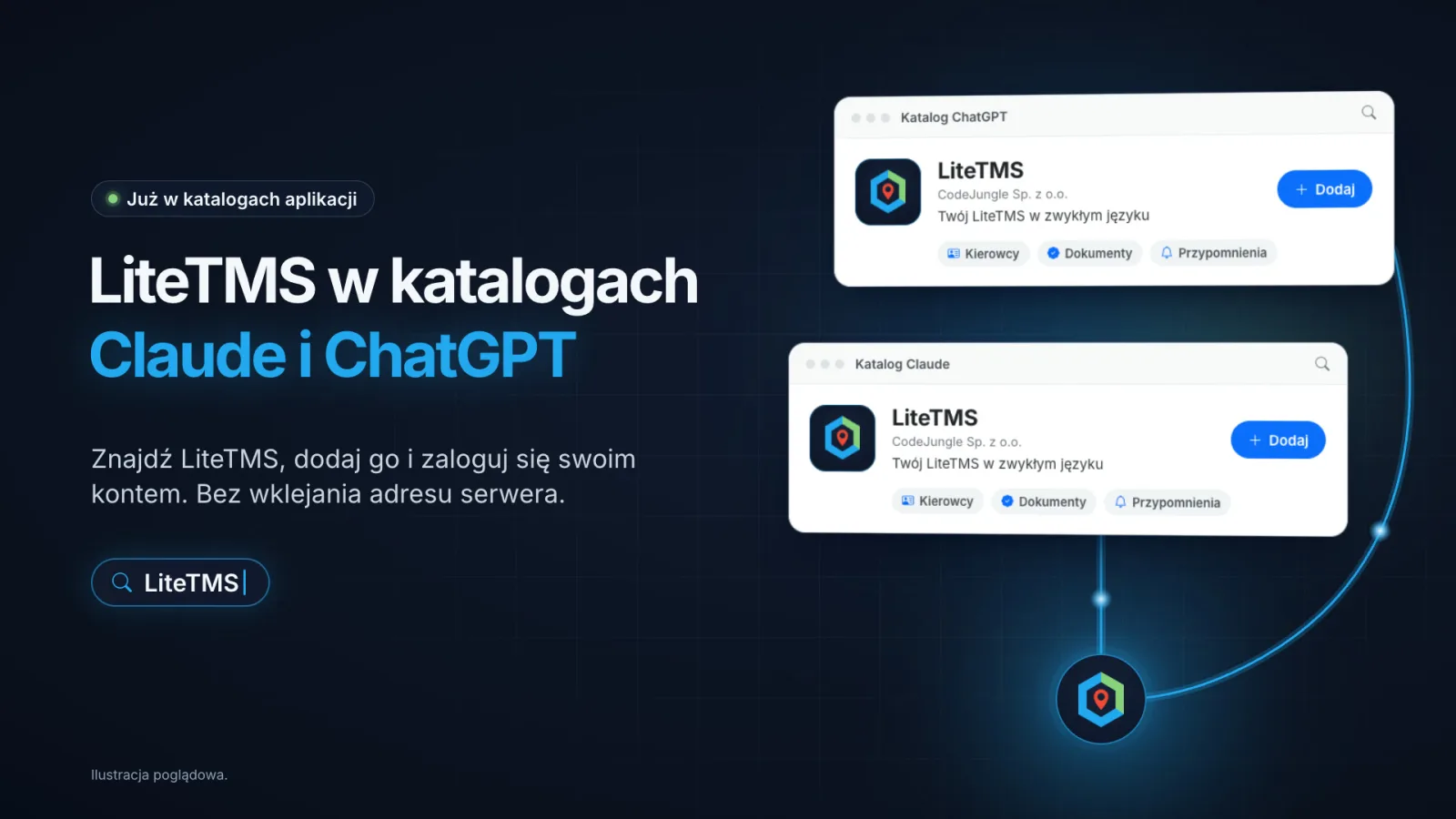
LiteTMS is now listed in the Claude directory and in the ChatGPT plugin directory. You no longer copy our server address into your AI app's settings: you open LiteTMS in the directory, add it and sign in with your own LiteTMS account. Everything else works as before. The app sees only what your role allows, and the "ChatGPT, Claude & MCP" module costs nothing extra.
What changes when you connect
On 17 October we launched the LiteTMS MCP server, which lets Claude, ChatGPT and other AI apps answer questions about your drivers, their documents and your reminders. Until now, connecting it meant pasting the address https://mcp.litetms.eu/mcp into a custom connector in Claude, or turning on developer mode in ChatGPT and adding the server by hand.
Both directories have now reviewed and listed LiteTMS. Instead of a technical setting, you find LiteTMS by name in the AI app you already use, add it, and sign in once in your browser. The sign-in is the same as before: you enter your company's LiteTMS address, sign in as usual and choose Allow.
Add LiteTMS to Claude
- Open LiteTMS in the Claude directory. You can also get there inside Claude: choose Customize, open Plugins and search for LiteTMS.
- Add LiteTMS.
- When Claude asks you to connect, enter your company's LiteTMS address (for example
acmefor acme.litetms.eu), sign in and choose Allow.
You add it on the web or in the Claude desktop app, and the same Claude account then uses it in chat, in Cowork and in Claude Code.
Add LiteTMS to ChatGPT
- Open LiteTMS in the ChatGPT plugin directory. Inside ChatGPT, open Plugins and search for LiteTMS.
- Install the plugin and connect your account.
- Enter your company's LiteTMS address, sign in and choose Allow.
ChatGPT offers plugins depending on your plan, your workspace settings and your country. If it does not let you install LiteTMS, the setup by server address described in our first post and on mcp.litetms.eu still applies.
More than a connection: instructions for the AI app
In both directories LiteTMS comes as a plugin. Besides the connection to the server, it gives the AI app instructions on how to work with LiteTMS, written for the questions a transport office asks:
- It searches before it answers, and when two people share a surname, it asks which one you mean instead of picking one.
- It puts expired documents first, then the ones about to expire, and it shows dates exactly as LiteTMS records them.
- It writes "not recorded in LiteTMS" when a phone number or date is missing, rather than guessing one.
- It asks before it deletes a reminder or shows one to the whole company.
- It never asks for your LiteTMS password in the conversation. You type it only on the LiteTMS sign-in page.
These are instructions the plugin gives the model, so the answer is still the AI app's own work. The data in it comes from LiteTMS.
What stays the same
An administrator turns on the "ChatGPT, Claude & MCP" module once for the company, in the Marketplace or with one click the first time they connect an app. Each person then connects their own LiteTMS account, and their role, permissions and branches apply to every answer. Tools that change data are marked as such, never go beyond your role, and your company's audit log records every change. You can end a connection at any time in LiteTMS, under Settings, Connected apps.
Today the connection covers drivers and other employees, their documents and expiry dates, and your own reminders. More areas of LiteTMS are on the way, added step by step.
On Claude Team and Enterprise plans and in ChatGPT Business and Enterprise workspaces, the workspace administrator may first need to allow LiteTMS for your organization.
What it costs
The "ChatGPT, Claude & MCP" module is included in LiteTMS at no extra charge, and using its tools through the connection is not billed. Your AI app is paid to its provider under your own plan, so check that your plan in Claude or ChatGPT allows plugins.
Other AI apps
Claude Code and Codex can install the same plugin, and Cursor, VS Code and any other MCP app still connect with the server address. The steps for each of them are on mcp.litetms.eu. If your company does not use LiteTMS yet and you want to see it with your own transport work, write to us.
Questions people ask
- How do I add LiteTMS to Claude?
- Open LiteTMS in the Claude directory, or choose Customize, then Plugins in Claude and search for LiteTMS. Add it, then enter your company's LiteTMS address, sign in and choose Allow.
- How do I add LiteTMS to ChatGPT?
- Open LiteTMS in the ChatGPT plugin directory, or open Plugins in ChatGPT and search for LiteTMS. Install it, connect your account, sign in to LiteTMS and choose Allow.
- Do I still need the LiteTMS server address?
- Not for Claude or ChatGPT when you add LiteTMS from their directory. Other apps such as Cursor or VS Code still use https://mcp.litetms.eu/mcp.
- I already connected LiteTMS with the server address. Do I have to change anything?
- No. Your connection uses the same server and keeps working. If you add LiteTMS from the directory to get its instructions, you can then remove the connector you added by hand.
- Does adding LiteTMS from a directory cost anything?
- The "ChatGPT, Claude & MCP" module is included in LiteTMS at no extra charge. Your AI app is paid to its provider under your own plan.
Keep in touch
Make room for better reads.
Choose LiteTMS as a preferred source to find more of our articles on Google.
Choose LiteTMS on GoogleConfirm your choice on Google · Opens in a new tab