The Expenses module in LiteTMS collects receipts and invoices from drivers and from the office in one place. A driver photographs a receipt in LiteTMS Mobile and hands it in, AI reads the amount, VAT, date and seller, and the office checks those values next to the photo and approves them. What you end up with is a summary by category, vehicle, person and country, a list of who needs paying back, and an export for your accountant with your own account codes.
The film is narrated in Polish, with Polish captions.
The envelope of receipts at the end of the month
On the road a driver pays for fuel, AdBlue, parking, motorway tolls and the truck wash. The receipts end up in the glovebox, a jacket pocket or an envelope handed in at the office after the trip. Some are crumpled, a thermal receipt can fade, and one is always missing. Then someone in the office retypes the amounts into a spreadsheet, works out who paid with their own money, and answers the accountant's question about which account each one goes to.
The Expenses module turns that envelope into a list the office has straight away, not at the end of the month.
The driver takes a photo and hands it in
With the module on, LiteTMS Mobile shows Expenses in its menu. The driver adds a receipt by taking a photo (with the document scanner or the plain camera) or by picking a photo or PDF from the phone. A long or two-sided receipt becomes several pages of one expense. Then there is one question, Who paid?: company card, fuel card, company cash, my own money, or another method the company keeps on its list. The amount, date and a note are optional. Hand in sends the receipt to the office.
If there is no signal at the truck stop, the receipt waits on the phone under On this phone and sends itself once the signal is back. The driver can see in the app what happened to each receipt: waiting for review, approved, or rejected by the office and why.
AI reads the values, a person approves
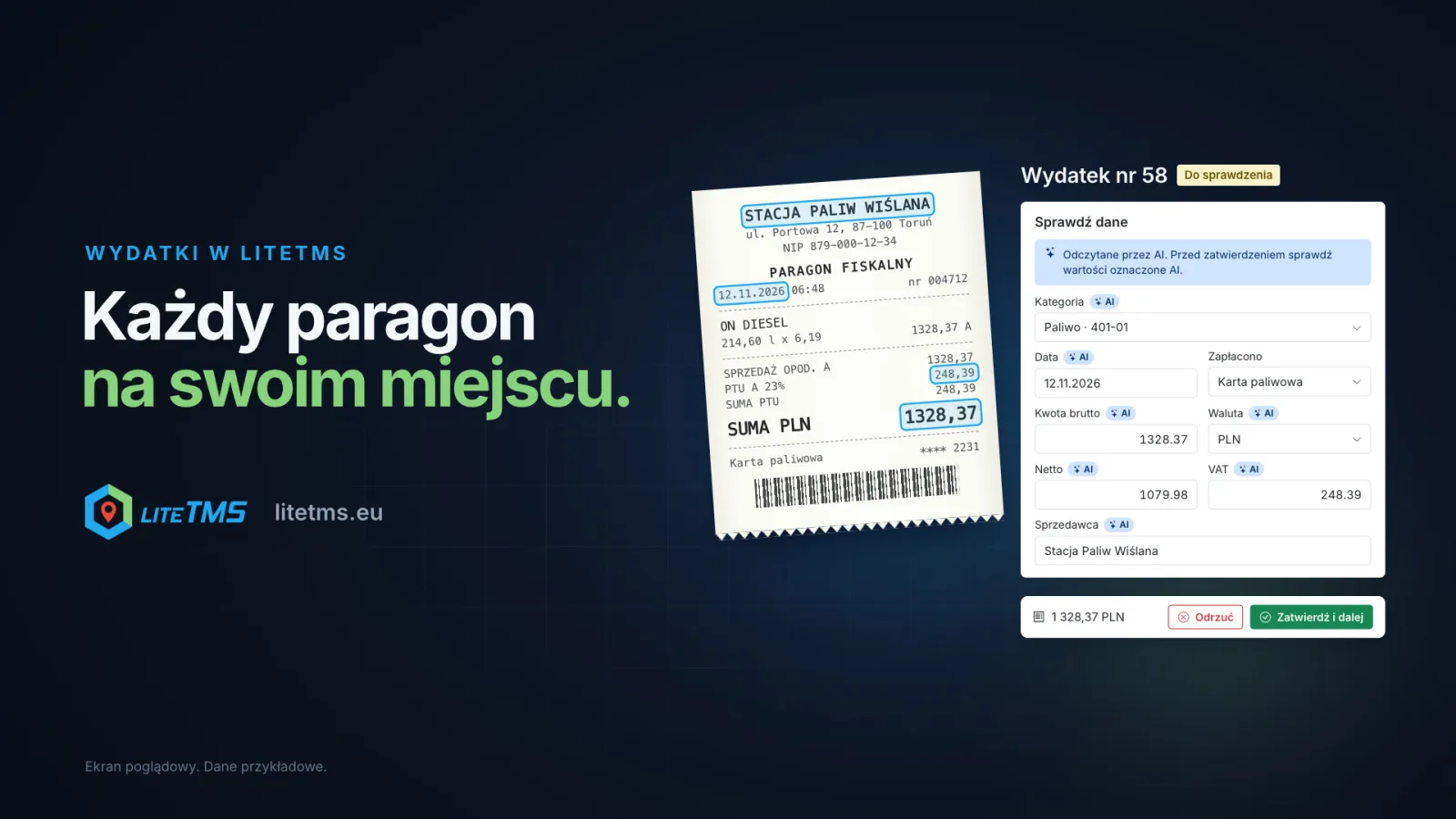
Once a receipt is handed in, AI reads the gross amount, net and VAT, the date, the seller and their tax number, the document number and the country from the photo, and suggests a category. It fills only empty fields, never changes the payment method and never touches an expense that has already been approved. Every field AI filled carries an AI mark until someone changes it.
AI also warns. When a typed amount or date differs from the receipt, when net and VAT do not add up to the total, when the photo is hard to read, or when it does not look like a receipt at all, you see it above the form. Reading is switched on or off in the module settings. Each reading counts toward the company's AI usage, and with AI off the values are filled in by hand during review.
Review next to the photo
The office sees the list of expenses with a switch for To review, Approved, Rejected and All. An expense page shows the photo on the left, with zoom and rotate, and the Check the details form on the right. Approve and next approves the expense and opens the next one waiting. Several complete expenses can also be approved at once from the list.
A rejection needs a reason, such as "The photo is blurred, take it again" or "We need the invoice, not the receipt". The person who added the receipt reads it in LiteTMS Mobile. An approved expense is read-only; when something needs correcting, you send it back to review.
The same receipt twice
When the same receipt reaches the system again, LiteTMS flags it as a possible duplicate and shows which expense it resembles. It checks the photo itself, and also the amount, currency and date together with the document number, tax number or seller. If it turns out to be a different expense, one click marks it as not a duplicate.
Not only drivers
Every expense has its person: an employee, such as a driver or a mechanic, or a system user, such as a forwarder or a salesperson. In the office, receipts go in through Add receipts: drop photos or PDFs, and tick one box when they are pages of the same receipt. A reviewer can add an expense on someone else's behalf.
When the module is first switched on, every role except the administrator gets permission to add expenses, so people can hand in receipts from day one. Anyone without permission to view all expenses sees only their own.
Where the money goes
The Summary tab shows the expenses for a chosen period, grouped by category and account, person, vehicle, country, payment method or month. Amounts are listed per currency, with an approximate total in the company's currency converted at the monthly NBP and ECB rates. The filters work as they do on the list, and one switch includes the expenses still waiting for review.
Below the summary sits the To pay back card: approved expenses paid with someone's own money and not yet repaid. You see how much each person is owed, and after paying it back you mark the expense as repaid.
For your accountant: your categories and account codes
The categories are yours. You start with ten, from fuel, AdBlue and road tolls to accommodation and meals, and each can carry an account code from your own chart of accounts, such as 402 or 409 in the Polish chart, or any number your accountant uses in another country. The code appears in the summary and in every export.
Exports come in three forms: Excel (for accounting), CSV and Documents (ZIP) with the receipt photos. The Excel file includes the date, the document and its number, the seller and tax number, the category with its account code, net, VAT, gross, currency, the amount in the company's currency, the payment method, the person, the vehicle and whether it was paid back. Exported receipts are marked, and the Not exported yet filter shows what the accountant has not received.
An approved expense does not become an order cost. The module is the company's book of expenses, with or without an order, so it does not double up the costs you record on orders.
How to switch the module on
Expenses is a paid module in the LiteTMS module marketplace with a 7-day free trial. You see the monthly price there before you switch it on. In the module settings you decide whether AI reads receipts and whether drivers can add expenses in LiteTMS Mobile, and you set up your own categories with account codes. The module is also on the feature list.
New to LiteTMS? Register your company and give your drivers the app for one trip. Prefer to go through it with us? Get in touch and bring last month's envelope of receipts.
Questions people ask
- Does the driver have to type in the amounts from the receipt?
- No. The driver takes a photo, chooses who paid and hands the receipt in. With AI reading switched on, AI reads the amount, VAT, date and seller, and the office only checks them.
- What happens when the driver has no signal?
- The receipt waits on the phone under On this phone and sends itself once the signal is back. The office receives it only after it has been sent.
- Does AI approve expenses on its own?
- No. AI fills empty fields and marks them with an AI mark, and a person approves the expense. Each reading counts toward the company's AI usage.
- Can people who are not drivers add expenses?
- Yes. The person on an expense can be any employee or system user, and the office adds receipts with Add receipts.
- Will the summary show expenses from other countries and currencies?
- Yes. The summary also groups expenses by country and lists amounts per currency, with an approximate total in the company's currency at the monthly NBP and ECB rates.
- How much does the Expenses module cost?
- It is a paid module with a 7-day free trial. Its monthly price is shown in the module marketplace before you switch it on, and AI readings are billed as AI usage.
Keep in touch
Make room for better reads.
Choose LiteTMS as a preferred source to find more of our articles on Google.
Choose LiteTMS on GoogleConfirm your choice on Google · Opens in a new tab