
LiteTMS Mobile lets you download country maps to your phone before you leave. If mobile coverage drops during the journey, you can still view the downloaded area. Prepare the maps while you have an internet connection and check that each download has finished.
A parked truck, a map to check, and no signal
You stop for a break and open the map to look at the area around your next delivery. There is no mobile connection. If the map still needs downloading, you have to wait for coverage before you can see it.
Country downloads let you prepare for that moment. When the phone loses its connection, LiteTMS uses the downloaded map for the area you are viewing. You can inspect it without waiting for the network to return.
For a transport company, this is a practical addition to departure checks. Drivers can download the maps themselves on the phones they use for work.
Download the countries you will pass through
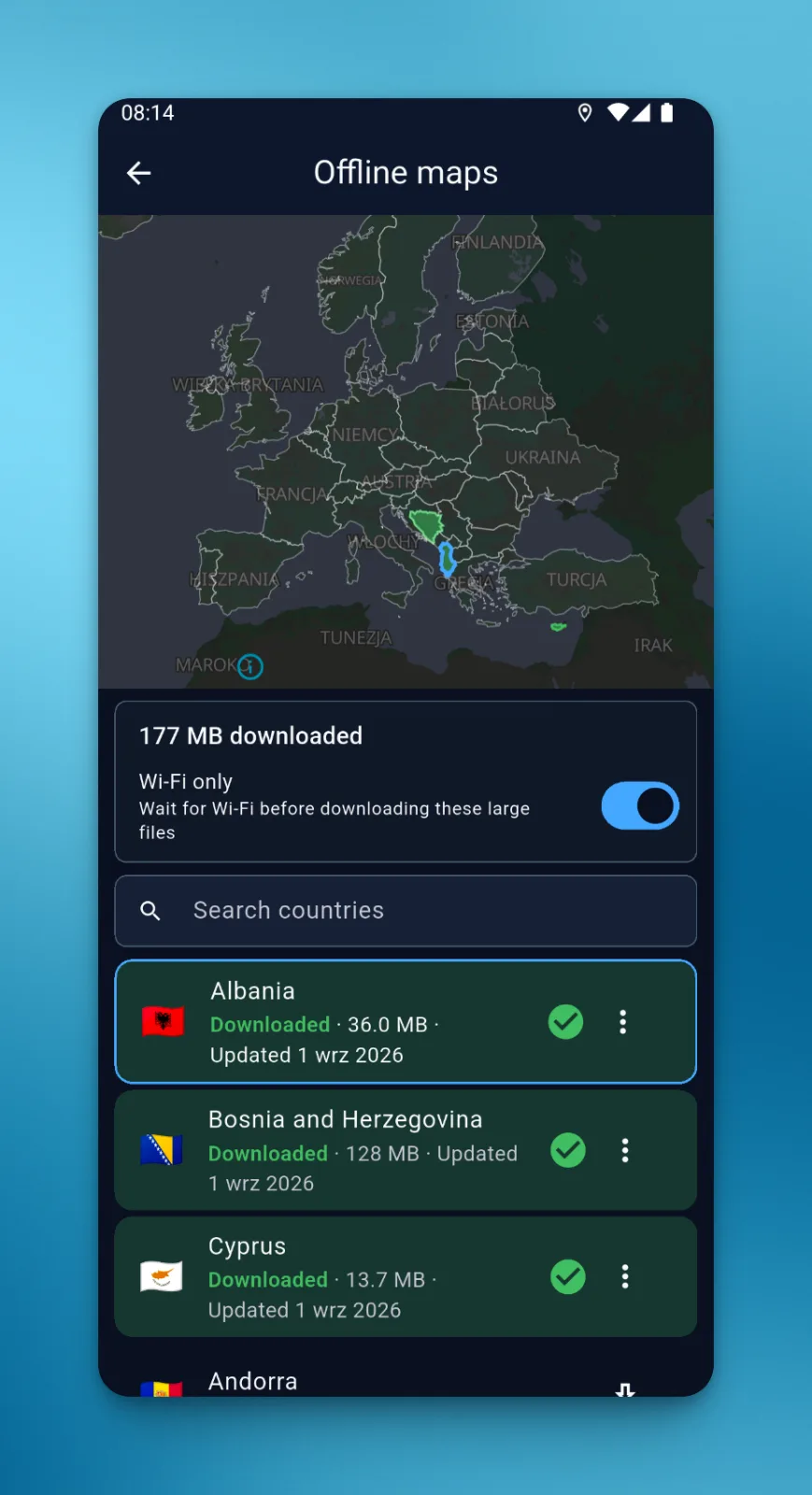
Open the map settings in LiteTMS Mobile and select Offline maps. The screen has a country map and a searchable list.
- Select a country on the map or find it in the list.
- Choose Download.
- Wait until its status reads Downloaded.
- Repeat for the other countries on your journey.
Wi-Fi only is enabled by default. You can prepare the phone using the depot's Wi-Fi without downloading large map files over mobile data. The screen also shows how much storage the downloaded maps use.
Before leaving, check the completed status for each country. A download that has only started is not a map you can rely on having available yet.
Include transit countries in your checks
Maps are downloaded by country. If your journey runs through Poland and Germany to France, prepare all three maps if they are available in the app's catalogue. The country you pass through matters just as much as the destination.
Downloading one country does not provide a map for the rest of the journey. This is worth checking when a driver takes an unfamiliar route or crosses a different border from usual.
You can manage the files from the same screen. Remove a country map when you no longer need it, or download an update when the app shows one is available. That keeps the choice of what stays on the phone with the driver.
What a downloaded map provides
A country download keeps that country's map available for viewing. Searching for new addresses and recalculating a route require an internet connection. Getting current company data and delivering changes to the office also require connectivity.
The map stored on your phone gives you something useful to view while coverage is missing. Current information still comes through the network. For more about the planned route itself, see how the dispatcher's route appears in the driver app.
Before your next departure, open the country list and check the maps along your route. Once those downloads are complete, losing mobile coverage does not mean losing access to those maps.
Questions people ask
- Can I view maps in LiteTMS Mobile without mobile coverage?
- Yes. Country maps downloaded to the phone remain available for viewing when the connection drops. Each download must finish before you lose coverage.
- Where do I download a country map?
- Open the map settings and choose Offline maps. Select a country from the map or list, choose Download, and wait for its status to read Downloaded.
- Do I need a map for every country on the journey?
- To view maps without coverage throughout the journey, download each country you will pass through that is available in the catalogue. Include transit countries as well as your destination.
- Can a downloaded map recalculate my route without internet?
- No. It provides a map of the downloaded area for viewing. Route recalculation and new address searches require an internet connection.
Keep in touch
Make room for better reads.
Choose LiteTMS as a preferred source to find more of our articles on Google.
Choose LiteTMS on GoogleConfirm your choice on Google · Opens in a new tab