
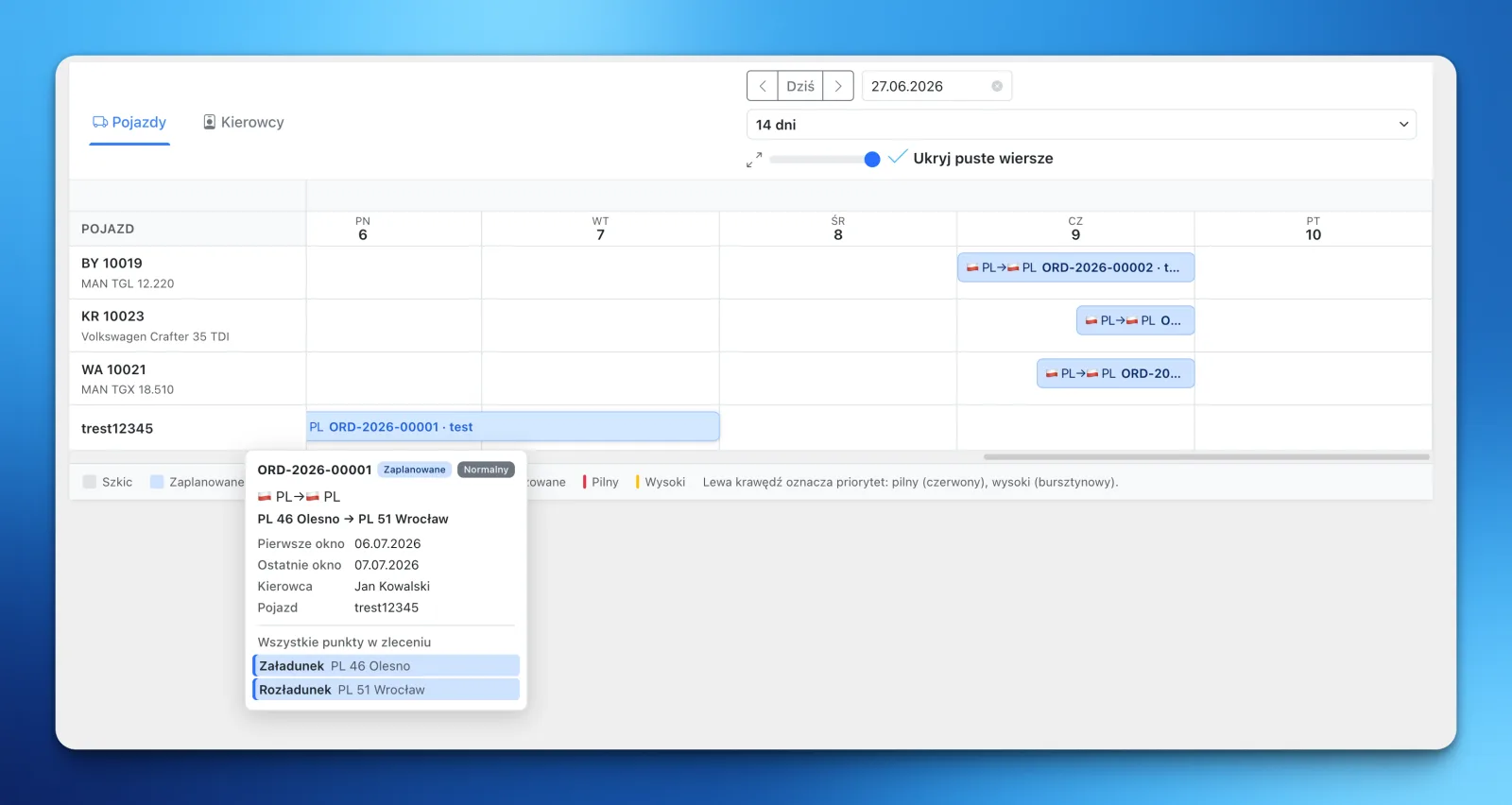
LiteTMS now has an orders calendar. Every vehicle gets a row (or every driver, there are two tabs), every order gets a bar spanning its dates, and the whole week of work sits on one timeline. Each order has a summary card with its time windows, crew, and stops, and a click opens a map with the route drawn and the truck's current position on it.
The question a list can't answer
The orders list is a good register. It tells you what you have: numbers, relations, statuses, dates. What it never tells you at a glance is the shape of the week. What is on the road on Thursday? Which truck comes free on Friday? Are two urgent jobs sitting on the same rig by accident?
Dispatchers answer those questions anyway. They answer them from memory, or from a whiteboard, or from a second spreadsheet that exists only to show time. The calendar's job is to make that parallel system unnecessary. The plan itself becomes something you can look at.
One row per truck, one bar per order
The layout is the one you would sketch on paper. Rows are vehicles, columns are days, and each order lies across the days it occupies. A drivers tab flips the same view to people, which is the one you want when the question is about crews rather than equipment.
The bar carries more than a name. Its color is the order's status, so a draft looks different from a planned or running job, and a legend along the bottom reminds you which is which. The left edge carries priority: a red edge means urgent, an amber one means high. You choose how many days fit on the screen, zoom with a slider, and hide rows with nothing on them when you only care about the trucks that are working.
Every bar also comes with a summary card holding the essentials: the order number and status, the relation, the first and last time window, the driver and vehicle, and every stop in the order with its loading or unloading marked. That is usually enough to answer a quick question without leaving the calendar at all.
Click, and the truck is on the map
The most common phone call in dispatch is some version of "where is it now". Click a bar and LiteTMS opens the map: the route drawn from the first loading to the final delivery, and the vehicle's current position on it. Where the plan and the truck have drifted apart, you see it immediately. Where they haven't, you close the map and move on.
That one click replaces a small ritual. Before, checking on a load meant opening the order, finding the route, then finding the vehicle somewhere else. Now the plan and the reality share a screen, and comparing them takes seconds.
Free capacity is the empty space
A timeline shows two things at once, and the second one is easy to underrate. The bars show the work. The gaps show the capacity. When a new order comes in for Thursday, you don't run a search. You look down the Thursday column for a row with room, and the answer is just there.
And because orders in LiteTMS are free and unlimited, a full calendar costs exactly the same as an empty one. Plan as much as you like. The meter doesn't move.
Questions people ask
- What does the orders calendar in LiteTMS show?
- It shows every order as a bar on a timeline, with one row per vehicle or per driver. The bar's color is the order's status, its left edge marks priority, and a summary card shows the time windows, the assigned driver and vehicle, and all stops with loading and unloading marked.
- Can I view the calendar by driver instead of by vehicle?
- Yes. The calendar has two tabs, vehicles and drivers, with the same timeline underneath. The vehicles tab answers questions about equipment, and the drivers tab answers questions about who is doing what and when.
- What happens when I click an order in the calendar?
- A map opens with the order's route drawn from the first loading to the final delivery, and the vehicle's current position shown on it. You can compare the plan with where the truck actually is without calling anyone.
- Does the orders calendar cost extra?
- No. It is part of the orders workspace. Orders in LiteTMS are free and unlimited, and standard maps are included, so looking at your plan costs nothing.
Keep in touch
Make room for better reads.
Choose LiteTMS as a preferred source to find more of our articles on Google.
Choose LiteTMS on GoogleConfirm your choice on Google · Opens in a new tab