
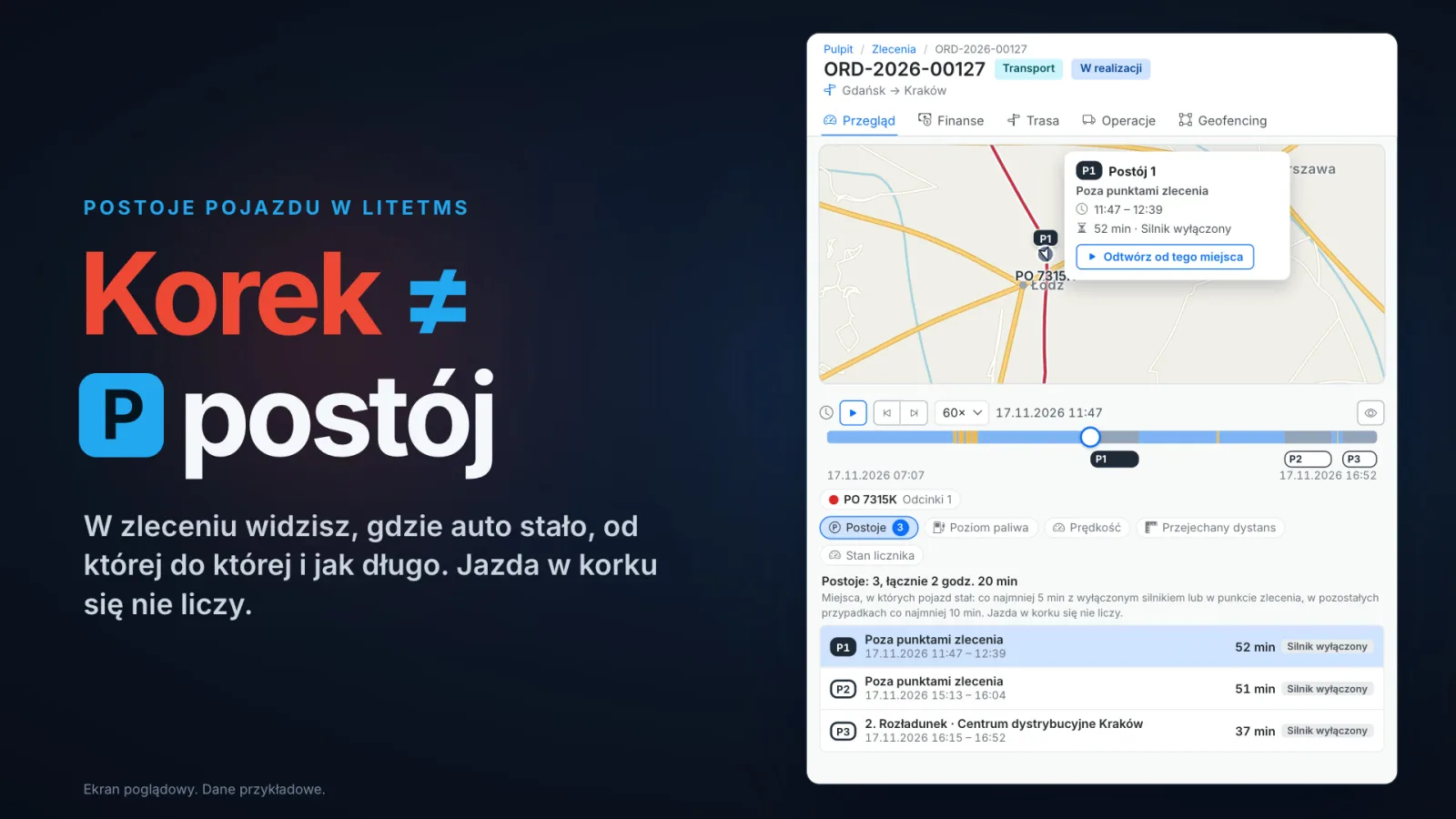
On the map, a truck crawling through a jam and a truck parked with the engine off can look exactly the same: the dot hardly moves and the speed reads 0 km/h. LiteTMS tells the two apart. In the order you see every stop the truck made on the route: where it stood, from when to when, for how long, and whether it was at one of the order's points or somewhere on the way. Crawling in a jam does not count. It works from the vehicle's GPS positions, sent by a connected tracker or by GPS tracking in LiteTMS Mobile.
The film is narrated in Polish.
Forty minutes at zero
A dot on the map has not moved for forty minutes, and the speed next to it says 0 km/h. Is the truck stuck in traffic, or is it parked?
The dot alone can't tell you, because these are two different stories that look the same on a map. In a jam the truck creeps forward a few metres at a time with the engine running, and between those moves its speed drops to zero. At a stop it stands in one place, often with the engine switched off. The first is about the road. The second is a break, a wait for an unloading slot or the unloading itself.
How LiteTMS tells a stop from a jam
LiteTMS looks at three things: time, place and the engine. It follows the vehicle's GPS positions over time, compares them with the order's loading and unloading points, and reads the ignition when the tracker sends it. The rule is printed above the list of stops, in the app's own words:
Where a vehicle stood still: 5 min or longer with the engine off or at an order point, otherwise 10 min or longer. Stop-and-go traffic does not count.
Stop-and-go traffic does not count because the count starts again every time the queue moves on. Traffic that keeps inching forward never adds up to five or ten minutes in one place. A truck creeping along at walking pace doesn't slip in either. Away from the order's points, a stop with the engine running, or with no engine data, has to stay put: if the truck ends up more than 50 metres from where it started, LiteTMS treats it as crawling, not standing.
There is one honest exception. If traffic stops completely for ten minutes or more, on a closed road for example, nothing in the data separates that from a wait, so LiteTMS lists it as a stop. When the tracker sends the ignition, that stop says Engine running, and you can see how the truck stood.
Every stop on the order
Open the order and stay on the Overview tab. Once the order's vehicle has a GPS track, the route playback appears under the map, with a Stops chip that shows how many stops there were. Click the chip and the stops appear in three places at once: as a list under the playback bar, as P pins on the map and as P markers along the timeline.
Take sample order ORD-2026-00127, from Gdańsk to Kraków. The list opens with a summary, Stops: 3, 2 h 20 min in total, and then gives each stop its own row:
- P1, not at an order point, 11:47 to 12:39, 52 min, engine off
- P2, not at an order point, 15:13 to 16:04, 51 min, engine off
- P3, 2. Unloading · Centrum dystrybucyjne Kraków, 16:15 to 16:52, 37 min, engine off
Earlier that morning, from 09:21 to 09:47, the truck worked its way through a jam on the A1 near Toruń. The bar under the map still shows those minutes, but they are not on the list, because the truck never stood still long enough in one place.
What the list does not give you is a reason. It shows where the truck stood, when and for how long and, when the tracker reports the ignition, whether the engine was off or running. Why it stood there is not something GPS positions can say.
Click a stop, and the route goes back to it
Click a row in the list, or a P marker under the timeline, and the playback jumps to the moment that stop began. The map moves to the spot and opens the stop's card with its number, place, times, length and engine state. Play from here runs the route on from that moment.
The two arrows next to the play button, Previous stop and Next stop, jump from stop to stop, so you don't have to hunt for them on the bar. The marker of the stop under the playhead is highlighted, and you always know which one you are looking at.
How long the truck stood at the unloading
P3 is the unloading in Kraków: the truck stood at that order point from 16:15 to 16:52, 37 minutes. Because the stop was at one of the order's points, the list names the point instead of saying "not at an order point".
That is a fact the order shows to anyone who opens its playback. What your company does with it, for example whether you bring it up with the customer when you talk about waiting time, is your decision.
If you would also like the actual arrival and departure times written into the stop itself, that is the job of the stop zones on the order's Geofencing tab, described in our guide to geofencing in LiteTMS.
The same stops in a vehicle's history on the Map
Stops are not tied to orders. On the Map page, open a truck and click History: the playback there has the same Stops chip, list, P markers and arrows, and the same detection behind them. The Map has no order points, so the rule there reads: 5 minutes or longer with the engine off, otherwise 10 minutes or longer. The rest of the Map is covered in our post on the fleet map.
What it needs
Stops are worked out from the vehicle's GPS positions. Those come from a GPS tracker connected to LiteTMS, or from GPS tracking in LiteTMS Mobile when the driver has turned on position sending for that vehicle, the phone allows location access and the company permits it. LiteTMS works the stops out from the recorded track whenever you open the playback.
LiteTMS knows the engine state only when the tracker sends the ignition. Then each stop says Engine off or Engine running. Positions from LiteTMS Mobile carry no engine state, so those stops show no engine label, and away from the order's points they count from ten minutes.
There is no module to switch on. The stops are part of the route playback on the order's Overview tab, on every order whose vehicle has a GPS track.
Want to see it on one of your own routes? Get in touch and we will start with an order whose truck already sends GPS positions.
Questions people ask
- Why doesn't a traffic jam count as a stop in LiteTMS?
- In a jam the truck keeps moving, even if only a few metres at a time, and every move starts the count again. A stop needs the truck to stand in one place: at least 5 minutes with the engine off or at an order point, otherwise at least 10 minutes. If traffic stands completely still for 10 minutes or more, LiteTMS does show a stop, marked Engine running when the tracker sends the ignition.
- What data does LiteTMS need to detect vehicle stops?
- The vehicle's GPS positions, from a GPS tracker connected to LiteTMS or from GPS tracking in LiteTMS Mobile. Phone tracking needs the driver to turn on position sending for the vehicle, location access on the phone and the company's permission.
- Does every stop show whether the engine was off?
- No. Engine off or Engine running appears only when the vehicle's tracker sends the ignition. Positions from LiteTMS Mobile have no engine state, so those stops show no engine label and, away from the order's points, count from 10 minutes.
- Where else can I see a vehicle's stops?
- On the Map page, in a vehicle's History. The same detection runs there, but without order points, so a stop is 5 minutes or longer with the engine off, otherwise 10 minutes or longer.
- Can I play the route back from a particular stop?
- Yes. Click the stop in the list or its P marker under the timeline, and the playback jumps to the moment the stop began, with the spot and the stop's card on the map. Play from here runs the route on, and the arrows jump to the previous or the next stop.
- Do vehicle stops need a separate module?
- No. Stops are part of the route playback on the order's Overview tab, on every order whose vehicle has a GPS track.
Keep in touch
Make room for better reads.
Choose LiteTMS as a preferred source to find more of our articles on Google.
Choose LiteTMS on GoogleConfirm your choice on Google · Opens in a new tab