
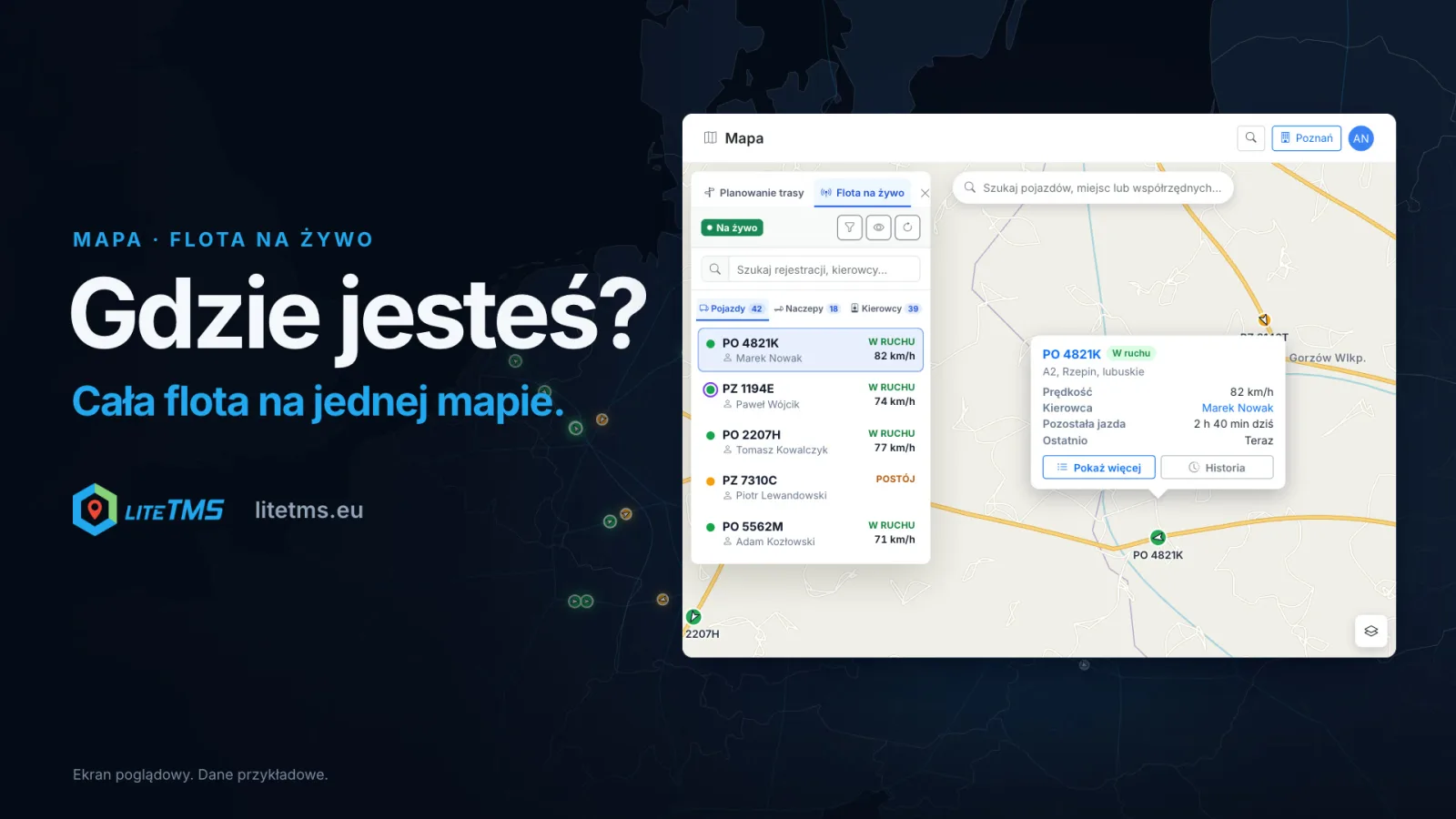
The LiteTMS Map shows your whole fleet on one screen: where each truck is, how fast it is going, who is driving and when its last position came in. Positions come from the GPS system already fitted in your trucks, and a vehicle without a tracker can be shown by the driver's phone in LiteTMS Mobile. If your GPS provider sends tachograph data, you also see how much driving time the driver has left, and the route planner fills it in for you and adds the breaks.
The film is narrated in Polish, with Polish captions.
Five phone calls to plan one afternoon
"Where are you? How far is it still? Will you make the unloading slot?" Many forwarders know these questions by heart: they come up several times a day, driver after driver. Each call pulls the driver's attention off the road, and the answer is good for about fifteen minutes. When the customer asks what time the truck will arrive, you call again.
The LiteTMS Map does not replace talking to your drivers. It takes out the part you can check yourself: where the truck is, whether it is moving, and how far it can still go today.
The whole fleet on one map
Open Map from the side menu. The Live fleet panel on the left has three tabs, Vehicles, Trailers and Drivers, with a status next to each truck: Moving, Idle or Off. Search the list by plate or driver name, and narrow it by status, GPS provider or branch. On the map, each marker's colour matches the list, and a white arrow shows the direction of travel.
Click a truck to open its popup: the address, Speed, Driver and Last seen, the time of the latest position. A position older than ten minutes is marked as out of date, so you can tell at a glance whether you are looking at a fresh reading. History replays that truck's trips from the last 92 days, stops included.
New positions appear on the map as soon as the server receives them, with no page refresh. How often they arrive depends on the source: some GPS providers stream them continuously, LiteTMS fetches them from others about once a minute, and the driver's phone sends them in batches no more often than every 15 seconds.
Positions from the GPS you already have
You do not need new trackers. In settings, under GPS Integrations, click Add connection, choose your provider and enter the access details it asks for: a login and password, or an API key. LiteTMS checks the connection and lists the Discovered assets, the vehicles, trailers and drivers in your account with that provider. You decide which of them come in: import each one as a vehicle, a trailer or a driver, or link it to a record you already have in LiteTMS.
Is your provider not on the list? Choose Other GPS provider and give us what you have: the provider's name, the address of its portal, a link to its API or documentation, and access details. If the provider offers an API, we can connect it.
Driver hours next to the truck and in the route plan
Some GPS providers send tachograph data. When yours does, LiteTMS loads it by itself and the truck's popup shows a Driving left row, such as "2 h 40 min today". Show more opens the Driver hours panel: driving time left today and this week, the latest time the daily rest must start, and when the data was read. Data older than two hours drops out of the popup, and the panel warns that the driver may have driven or rested since.
The same data is used when you plan. On the Route planner tab, pick the truck under Load parameters: LiteTMS copies its dimensions and fills the tachograph fields with the driver's hours, noting the time of the reading. If the data is more than two hours old, the planner asks you to enter the values yourself. With Plan breaks and rests switched on, the plan adds the breaks and the daily rest, and Route end shows a time that includes them.
An example: the driver has 2 h 40 min of driving left today and 505 km to go, about 6 h 20 min behind the wheel. Driving time alone points to 20:55. The plan with a 45-minute break and an 11-hour daily rest shows a more honest time: 08:40 tomorrow.
An order's route plan also adds breaks and rests (we covered it in the post on ETA with breaks), but there you enter the driver's day by hand. The tachograph data fills the planner on the Map page.
The same data goes into the live ETA on an order. When it is less than two hours old, the estimated arrival includes the breaks and rest the driver will need on the way. A two-person crew can swap at the wheel, so for them the ETA stays plain driving time.
A route for this truck and this load
Under Route options, choose a truck and its type, such as a standard tractor and semi-trailer, or enter your own dimensions: height, width, length, weight, axle load and number of axles. A truck's saved parameters load with one pick. For dangerous goods, set the ADR class and the tunnel category. Under Avoid on route you can tick toll roads, ferries, tunnels and motorways, among others, as well as low emission zones and countries the truck should stay out of.
LiteTMS returns up to five routes and marks the fastest one and the one with the lowest tolls. Route details break down road tolls, vignettes, and estimated fuel and CO₂. Company-wide defaults are set once, in the map settings.
A truck without GPS? The driver's phone shows it
Not every truck has a tracker. Then the driver's phone can send the position. In LiteTMS Mobile, under GPS tracking, the driver picks the vehicle and turns on Send vehicle position. The app sends the position, speed and heading, in the background too, as long as the phone allows background location and battery saving does not put the app to sleep.
On the map, such a truck has a violet ring, and its popup carries a Mobile app badge, so you always know where a position came from. Tracking stops when the driver stops it, signs out or deselects the vehicle. The company can switch the feature off, and the office can block it for a particular driver. If the truck also has a tracker, its fresh position takes priority.
What is included
The Map and Live fleet are part of LiteTMS and need no separate module. Route calculation, place search, the live traffic layer and extra map layers, such as the truck or satellite map, are paid map services billed per use at the rates shown in your panel. The standard map styles have no limit.
Register your company, connect your GPS provider and see your fleet on one map. Prefer to set it up with us? Get in touch.
Questions people ask
- Where does LiteTMS get vehicle positions from?
- From the GPS system in your trucks, through a ready-made connection under GPS Integrations, or from the driver's phone in LiteTMS Mobile when the driver turns on position sending. Every position shows when it came in.
- Can I connect a GPS provider that is not on the list?
- Choose Other GPS provider and enter the provider's name, its portal address, a link to its API or documentation, and access details. If the provider offers an API, we can connect it.
- Can I see driver hours on the map?
- Yes, if your GPS provider sends tachograph data. The truck's popup shows the driving time left today and this week, and the Driver hours panel adds the rest deadlines. The route planner fills these values in and adds the breaks, and the live ETA on an order counts them.
- Will a truck without a GPS tracker show on the map?
- Yes, if the driver picks that truck in LiteTMS Mobile and turns on position sending, with location permission granted on the phone. On the map it has a violet ring and a Mobile app badge.
- How often do positions update on the map?
- The map shows a new position as soon as LiteTMS receives it, with no page refresh. How often that happens depends on the source: some providers stream positions continuously, others are fetched about once a minute, and the phone sends them no more often than every 15 seconds.
Keep in touch
Make room for better reads.
Choose LiteTMS as a preferred source to find more of our articles on Google.
Choose LiteTMS on GoogleConfirm your choice on Google · Opens in a new tab