AI Automations is a LiteTMS module that does the office's recurring checks on a schedule: it looks at the fleet, the orders, the expiring documents and the overdue invoices, then sends an email or a notification in LiteTMS to the people you choose. You do not configure it step by step. One sentence, typed or dictated, is enough, and AI draws the automation on a canvas. You check each step, test it and switch it on.
Watch this film on its own page
A morning that looks the same every day
In many transport offices the day starts with the same round. You open the map and check what each truck is doing. Then today's orders, then the documents about to expire, then the invoices past their due date. Finally you write an email to the team or the boss, with the same columns as yesterday.
It is important work, because someone has to know which truck is standing without an order and which driver's document is about to run out. But it looks the same every day, which makes it a good job for the system.
One sentence instead of a setup
On the AI Automations page, above the canvas, there is a box called What should LiteTMS do for you? You type an ordinary sentence into it, for example:
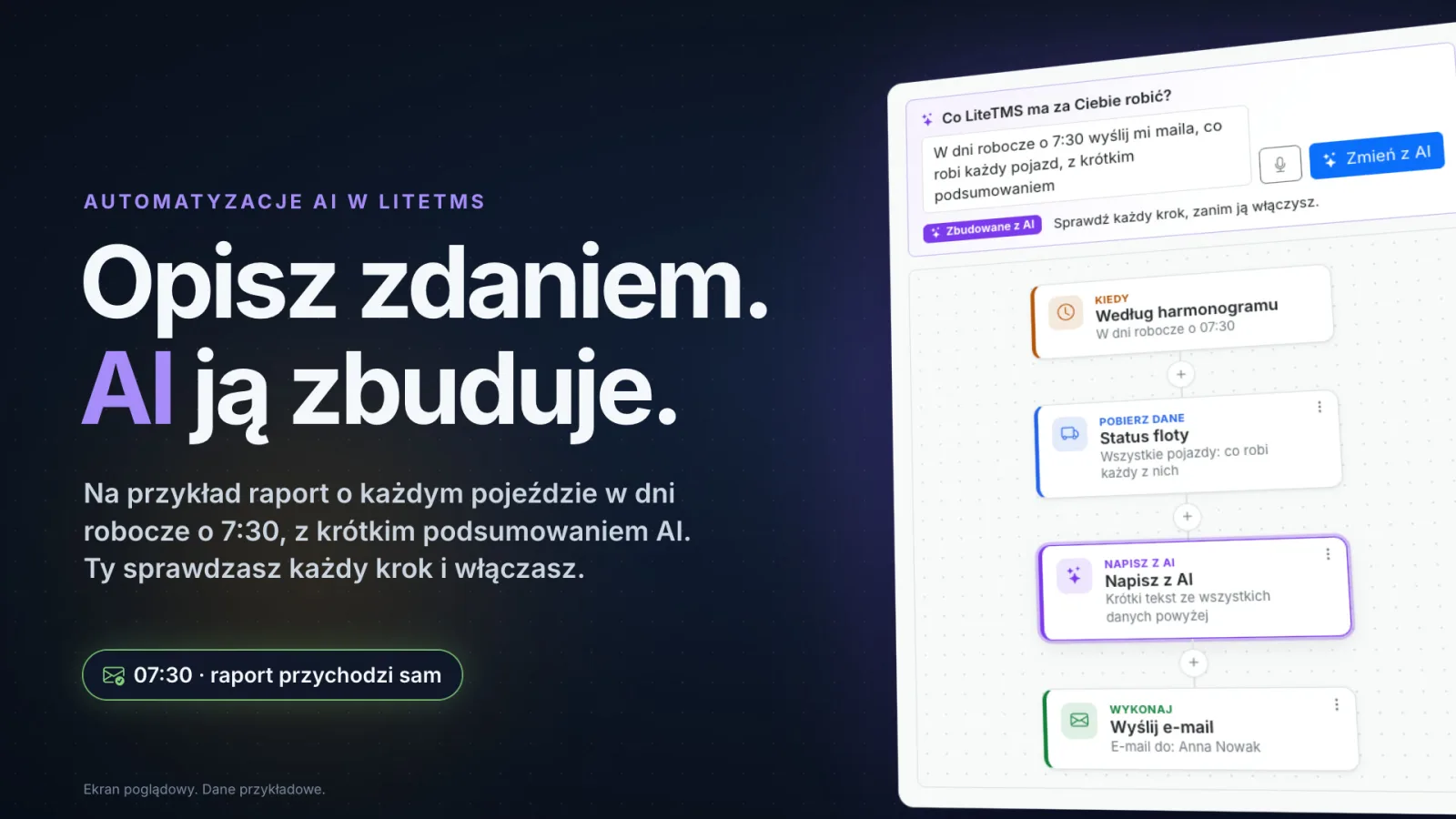
Every working day at 7:30 email me what each vehicle is doing, with a short summary
Instead of typing, you can click the microphone and say it. Dictation runs for up to two minutes and the text lands in the box. When you click Build with AI, AI draws the steps on the canvas: When (on a schedule, working days at 07:30), Get data (fleet status), Write with AI (a short summary) and Do (send an email). It also names the automation, for example "Fleet status every morning".
A Built with AI badge appears with a sentence that sums up who does what: "AI drew this on the canvas. Check every step before you turn it on." AI does not save or switch anything on by itself. If you do not like the result, Undo brings back the previous version.
What an automation checks and what it sends
Every automation is a few steps from top to bottom. The canvas lays them out for you, so there is nothing to drag into place.
- When. A schedule: daily, on working days, on chosen days, monthly, or every few hours between two times.
- Get data. Fleet status, meaning what each vehicle is doing: its order, next stop, where it is and when it last sent a signal. Orders: loadings and unloadings today or tomorrow, orders on the road, orders still without a vehicle, orders created or completed yesterday. Expiring documents of vehicles, trailers and employees. Overdue invoices, meaning issued invoices that are unpaid after their due date.
- Write with AI. A short text from the data above. You can tell AI, as you would a colleague, what to start with, for example vehicles with no GPS signal.
- Only continue if. A condition stops the automation when there is nothing to report. Then nothing is sent, and the run history says Nothing to send.
- Do. An email to people in your company or to any address, with the data as tables under the message, or a notification under the bell in LiteTMS. Every recipient gets a separate email.
At the bottom of each email you can see which automation sent it and who set it up, so nobody wonders where the report came from.
Want a change? Add a sentence
You change a finished automation the same way you built it. Type the change into the same box, for example "only on Mondays" or "also notify Marek in LiteTMS", and click Update with AI. AI updates the canvas, and you check the result again.
You can also work without AI. The plus on the line between two steps opens the Add a step list with a description of each step, and a clicked step shows its settings: time, days, recipients, the email's subject and message. Insert data adds the results of the steps above to the message.
Test first, then switch it on
Test runs the automation as it is, with your permissions. Each step shows its result, and you can see the email the way it will arrive. A test sends nothing unless you tick the option to send the emails to yourself.
Then you save it and switch it on. LiteTMS tells you when the next run is, and the page lists the next few runs. Every run goes to the History tab: what each step found, what AI wrote, how many people the email went to. History is kept for 90 days.
If an automation fails three times in a row, it switches itself off and tells its owner. Your automations are also at hand in the AI assistant: the lightning icon in its header shows the list with on/off switches and a box to describe a new one.
Whose data an automation sees
An automation runs with the permissions of the person who last saved it, checked again at every run. A dispatcher who only sees their own branch cannot build a report about the whole company. If that person is no longer active, the automation switches off until someone else opens it, saves it and switches it on again.
Five ready-made templates
If you would rather not start from an empty canvas, pick a template and adjust it:
- Fleet status every morning: on working days at 7:30, an email about what each vehicle is doing, with a short AI summary.
- Today's loadings and unloadings: on working days at 7:00, everything planned for today in one email.
- Documents that expire soon: every Monday, vehicle, trailer and employee documents valid for less than 30 days or already expired.
- Overdue invoices: every Monday, unpaid invoices past their due date and who owes the most.
- Orders still without a vehicle: on working days at 14:00, a notification when orders for the next two days still have no vehicle.
What it costs and where to start
AI Automations is a paid module in the LiteTMS module marketplace with a 7-day free trial. You see the monthly price there before you switch it on. Emails, AI-written text and dictation are billed separately, like any other use of those services. Building with AI needs AI to be switched on for your company. Without AI you build on the canvas or start from a template.
A company can have up to 100 automations, and each one can run at most once an hour. How AI helps elsewhere in LiteTMS is covered in our post on AI features in LiteTMS.
Already using LiteTMS? Switch AI Automations on in the marketplace and start with the "Fleet status every morning" template. Not yet? Get in touch and we will show you how it looks with your own data.
Questions people ask
- Do I need to know how to code to build an automation in LiteTMS?
- No. You describe the automation in an ordinary sentence, typed or dictated, and AI draws the steps on the canvas. You can also pick one of five templates or add steps from a list.
- Can AI send anything without my approval?
- No. AI only draws a draft on the canvas. You save the automation and switch it on yourself, and a test sends nothing unless you choose to send the emails to yourself.
- What happens when there is nothing to report?
- If the automation has an Only continue if step, it stops there and sends nothing. The run history then says Nothing to send.
- Can an automation email someone outside my company?
- Yes. Besides people in your company you can type any email address, up to 20 recipients in total. Each one gets a separate email and does not see the others.
- Can an automation react to a new order or another event?
- No. Automations run on the schedule you set in the When step, at most once an hour.
- How much does AI Automations in LiteTMS cost?
- It is a paid module with a 7-day free trial, and the module marketplace shows its monthly price before you switch it on. Emails, AI text and dictation are billed separately as usage.
Keep in touch
Make room for better reads.
Choose LiteTMS as a preferred source to find more of our articles on Google.
Choose LiteTMS on GoogleConfirm your choice on Google · Opens in a new tab