
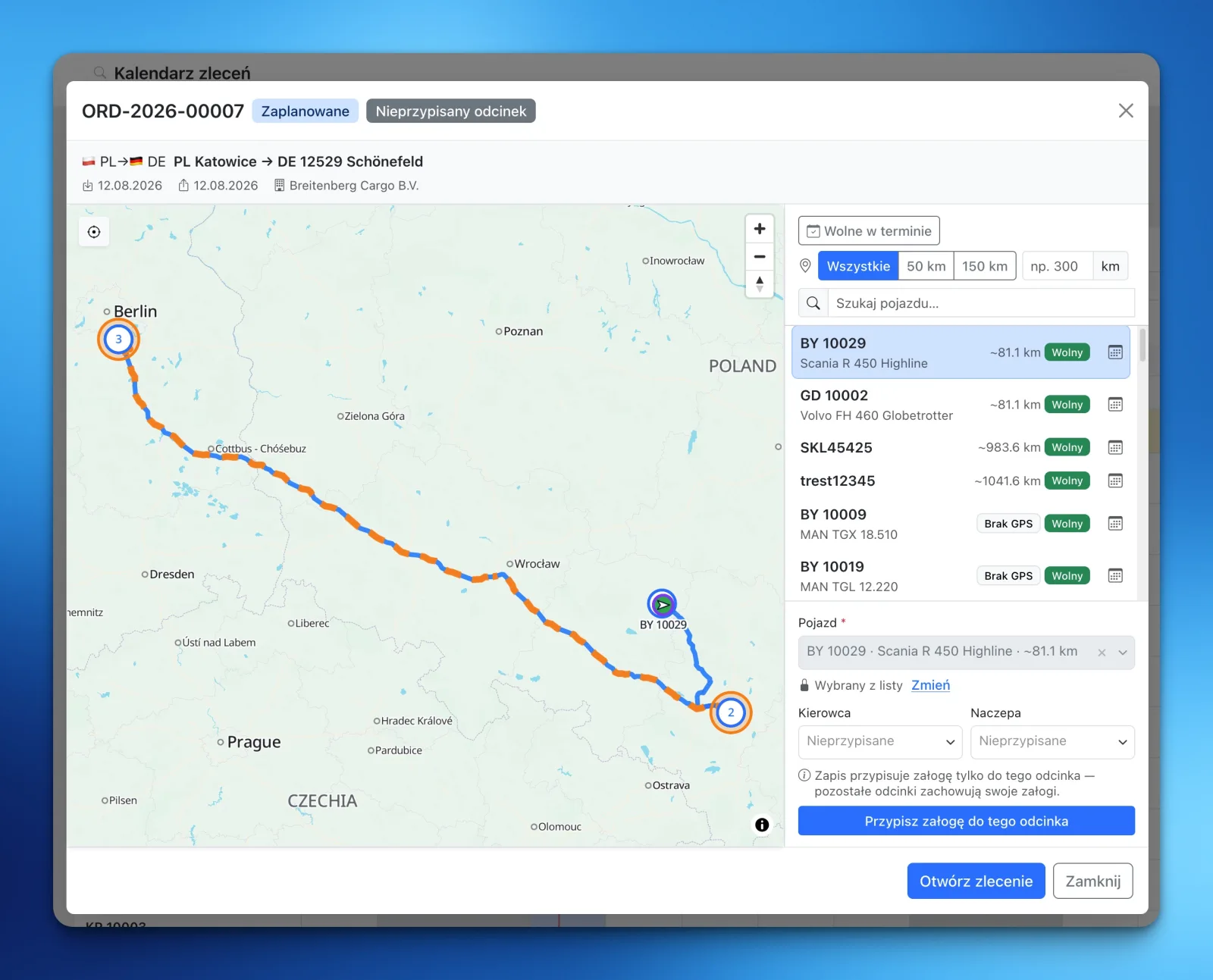
The LiteTMS orders calendar can now rank vehicles by proximity to the start of an unassigned job, check whether they are free in its time window, and show the surrounding schedule for any truck. Dispatch can assign the vehicle, driver, and trailer in the same view without bouncing between the calendar, fleet map, and separate records.
An unassigned order should produce a shortlist
A new order lands on the calendar. The route and time windows are ready, but the crew is not. Dispatch does not need another page listing every vehicle in the fleet. The useful questions are narrower: which truck is nearby, which one is free, and what work does it have immediately before and after this job?
Open an unassigned order or one unassigned leg from the orders calendar, and a ranked vehicle list appears beside the route map. Vehicles with a GPS position come closest first. Each row shows approximate distance, availability, and any useful warnings.
It turns “what can we send?” into a decision you can make from one screen.
Turn the whole fleet into a useful shortlist
Vehicles with a GPS position are ranked by approximate distance to the first stop on the order. When dispatch is staffing one leg, the list uses the starting point of that part of the route. The most promising candidates rise to the top without anyone comparing map positions by hand.
You can keep the entire fleet in view, limit the results to 50 or 150 km, or enter a custom radius. A vehicle without a current position remains on the list with a clear “No GPS” label, so dispatch can still consider it when needed.
Pick a candidate and the map moves to its position while keeping the planned route visible. The truck, starting point, and planned lane stay together on one screen.
“Available” means no overlapping active assignment
The “Available in this time window” filter compares the order's stop windows with active fleet assignments. When the times overlap, the vehicle is marked as busy. It stays available for inspection, including the orders behind the conflict, so dispatch gets context rather than a black-box verdict.
The calendar button beside a vehicle opens its work from seven days before the planned job through seven days after it. Order numbers, dates, lanes, and overlaps are all there. That answers the more useful question: does this order fit the truck's week?
The cargo can narrow the list too
When the order contains requirements, LiteTMS can flag equipment that may not fit. The advisory check covers ADR, temperature control, and the recorded cargo weight. Missing fleet data does not block a vehicle or trailer. The system shows what it knows, raises specific warnings, and leaves the final call with the dispatcher.
That distinction matters. Fleet records are not always complete, and a shortlist should help the operation move rather than stop it because one field is blank.
Assign the crew without leaving the calendar
After choosing a vehicle, you can select its driver and trailer in the same panel. LiteTMS can also suggest the crew most recently used with that truck. Nothing is applied automatically. You decide whether to reuse the whole suggestion, only the driver, or only the trailer.
For a multi-leg order, dispatch can staff just the unassigned leg currently on screen. Existing assignments on the other legs stay untouched. The decision is saved from the calendar, and the order remains where it belongs on the timeline.
This is how we are extending LiteTMS: fewer detours through the software, more of the right context at the moment a dispatcher needs it.
Register your company free and try order planning with your own fleet.
Questions people ask
- How does LiteTMS find the nearest vehicles for an order?
- Vehicles with a GPS position are ranked by approximate straight-line distance from their latest known position to the first geocoded stop on the order. For one unassigned leg, the start of that leg is used instead.
- Can I limit the vehicle list to a selected radius?
- Yes. You can show every vehicle, select a 50 or 150 km radius, or enter your own value. Vehicles with a GPS position are also ranked from nearest to farthest.
- Can I check a vehicle's other orders before assigning it?
- Yes. The calendar button opens the vehicle's schedule from seven days before the order through seven days after it, including order numbers, lanes, time windows, and overlap warnings.
- Does LiteTMS assign the vehicle and driver automatically?
- No. LiteTMS produces a shortlist, checks availability, and can suggest the vehicle's most recent crew, but a user always makes and saves the assignment.
Keep in touch
Make room for better reads.
Choose LiteTMS as a preferred source to find more of our articles on Google.
Choose LiteTMS on GoogleConfirm your choice on Google · Opens in a new tab