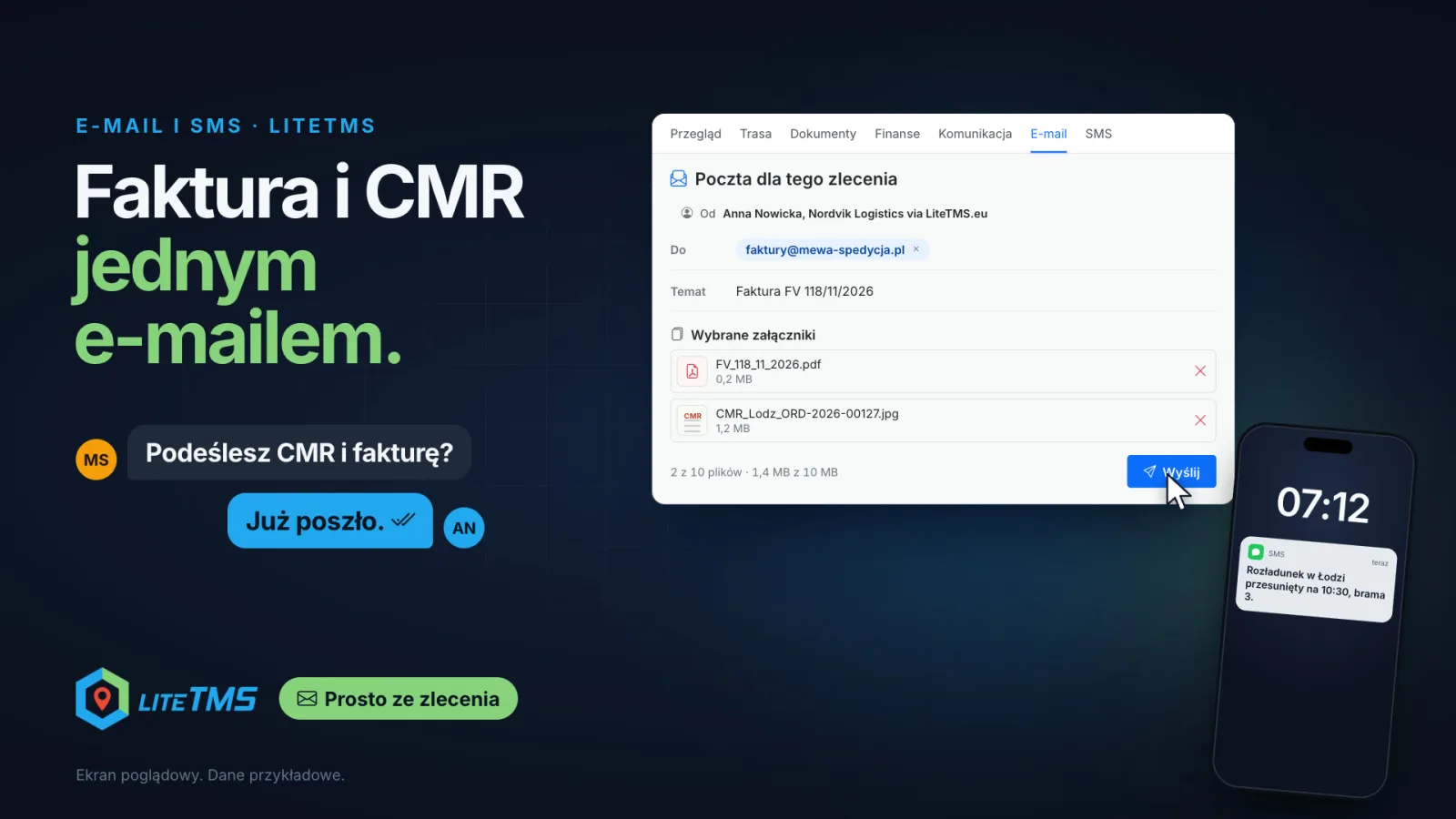
In LiteTMS you send the customer the invoice and the CMR in one email, straight from the transport order. The driver scans the CMR in LiteTMS Mobile and the file lands in the order's documents. Next to the issued invoice you click Send by email, and the order's Email tab opens with the customer's address, the subject and the invoice PDF already in place. You tick the driver's CMR and send. From the same order you can also text the driver, and everything you sent stays on the order.
Watch this film on its own page
Where the documents usually are when the customer asks
After unloading, the customer's message is short: "Can you send the CMR and the invoice?". The answer rarely is. The driver sent a photo of the CMR to a private messenger, the invoice has to be exported from another program and found in the downloads folder, and the address of the customer's accounts team is in an old thread from weeks ago. None of these steps is hard. Together they take windows, clicks and attention the office never has spare.
In LiteTMS all three are in one place: the order they belong to. Below we follow one sample order, ORD-2026-00127 from Poznań to Łódź, from unloading to the email that leaves.
The driver adds the CMR in the app
In LiteTMS Mobile the driver opens the unloading stop and taps Add document for this point. The app asks "What is this document?", the driver picks CMR and takes a photo. With the document scanner switched on in the app's settings, the camera finds the edges of the page and straightens the picture.
Once it is sent, the app says "Document sent." and the file sits in the order's documents, marked as a CMR and with the driver's name as its uploader. Nobody in the office has to ask for it or retype anything. If the phone has no signal, the app saves the document with "Saved. Waiting to send." and sends it when the connection returns; only then does the office see it.
Photos and signatures from tasks at route stops reach the order the same way, so everything the driver collected at unloading waits in one place.
The invoice drops into the email by itself
You issue the transport invoice on the order's Finance tab. An issued invoice has a Send by email button. Click it and LiteTMS opens the Email tab with a message ready: the buyer's email address from the invoice in the To field (when the invoice carries one), "Faktura" and the number as the subject in a Polish invoice's case, and a short summary with the invoice number and the amount due in the text. The invoice PDF is already in Selected attachments.
One condition applies to KSeF, Poland's national e-invoicing system. An invoice sent to KSeF can be emailed to the customer only after KSeF has accepted it, and LiteTMS never sends one that KSeF rejected.
One email, both documents
Below the message, Order documents lists every file on the order with a thumbnail. Tick the driver's CMR and it joins the invoice PDF in Selected attachments. A counter under the list shows how much of the limit they use: one email takes up to 10 documents and 10 MB in total. Click Send and the message leaves with both attachments.
The customer sees the email as coming from you: your name, your company's name and "via LiteTMS.eu". Their reply goes to the email address of your LiteTMS account, so it lands in your usual inbox rather than an address nobody reads. If you write this email several times a week, save it as a template, and Improve with AI helps when the text came out too long or unclear.
The module itself, with Cc, Bcc, the signature and the address limits, is covered in our article on email straight from the order.
A text to the driver from the same order
Not everything belongs in an email. The warehouse moves the unloading to 10:30 and changes the gate while the driver is on the road. On the same order's SMS tab you tick the driver under Drivers on this order, type the new time and gate, and send. The same list holds the contractor's contact people, the contacts at the route stops and the carrier, and you can type any other number by hand.
The text arrives as an ordinary SMS, so the recipient needs no app, which helps with a subcontractor's driver or someone at the warehouse. A counter under the message shows the characters and the number of SMS parts as you type, before anything is sent. Polish letters stay in the text but limit one SMS to 70 characters; if you prefer, you can send basic letters only and fit up to 160 characters in one SMS. Texts are one-way: the driver's reply does not come back to LiteTMS. More about the module in our article on texts straight from the order.
Everything you sent stays on the order
Every email and text sent from the order appears in its Sent from this order list: who sent it, to whom, when and with which files. The same messages show in the order's activity on the Communication and History tabs. When the customer asks a week later whether the invoice really went out, anyone in the office can check it on the order instead of searching a colleague's inbox.
What it costs
Email and SMS are two native modules in the LiteTMS Marketplace. Switching them on costs nothing. You pay for sending: every email and every SMS is charged at the rate shown in your billing panel, with a monthly free allowance where one applies. One email counts once whatever the number of recipients, and an SMS counts by the number of parts the counter shows.
Not using LiteTMS yet? Get in touch and bring an order your customers usually ask documents for; we will start with that one.
Questions people ask
- How do I send a customer the invoice and the CMR in one email?
- On the order's Finance tab, click Send by email next to the issued invoice. The Email tab opens with the customer's address, the subject and the invoice PDF, and under Order documents you tick the driver's CMR and send both files in one message.
- How does the driver's CMR scan get onto the order?
- The driver adds it in LiteTMS Mobile at the unloading stop by choosing the CMR type and taking a photo. The file reaches the order's documents once the phone is online.
- Does the driver need the app to receive a text from the order?
- No. A text from LiteTMS arrives as an ordinary SMS on the phone number, so a subcontractor's driver or someone at the warehouse receives it too. Replies to texts do not come back to LiteTMS.
- How much does sending an email or a text from LiteTMS cost?
- The Email and SMS modules cost nothing to switch on. Every email and every SMS sent is charged at the rate shown in your billing panel, with a monthly free allowance where one applies.
Keep in touch
Make room for better reads.
Choose LiteTMS as a preferred source to find more of our articles on Google.
Choose LiteTMS on GoogleConfirm your choice on Google · Opens in a new tab