
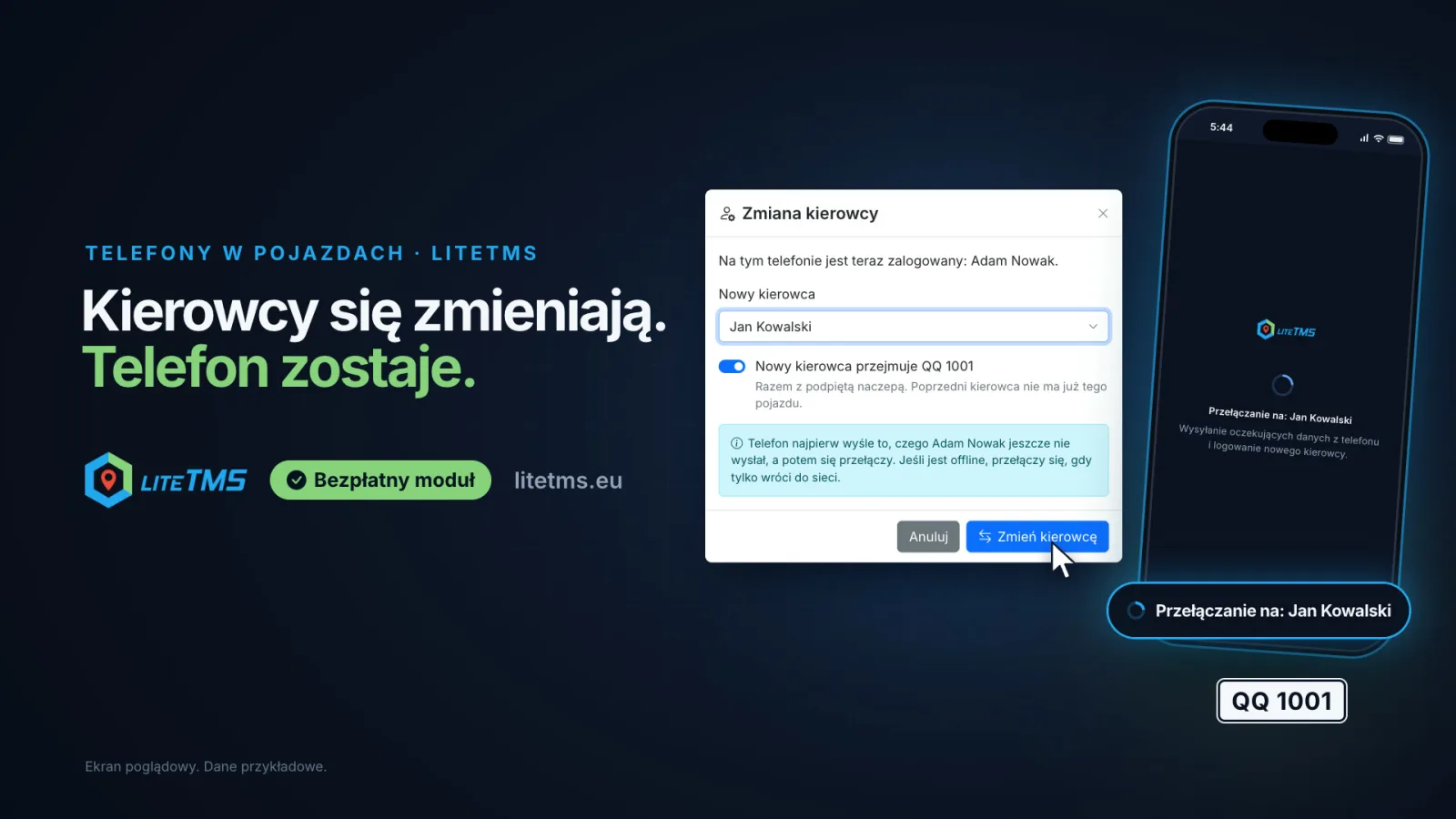
Where the phone belongs to the truck and not to the driver, every driver change starts with a call to the office and the same question: "What's the PIN?" For companies that work this way, LiteTMS has an additional, free module, Vehicle Phones: once it is on, the office makes that change itself. Someone picks the new driver next to the phone on the module page, and once the phone is online it sends what the previous driver still had waiting and signs the new driver in by itself, with no new PIN. If the phone has a vehicle assigned, the new driver takes it over too, with the hooked-up trailer.
The film is narrated in Polish.
Who this module is for
Usually every driver has a work phone of their own: they sign in to LiteTMS Mobile on it once and get on with the job. If that is how you work, there is nothing to change and nothing to switch on. Vehicle Phones is an additional way of working for companies that organise it differently: the phone stays in the cab and the people change, with double crews, rotations or a stand-in driver. The rest of this article is about a truck like that.
5:42 a.m., and the driver needs a PIN
Say Adam Nowak drove QQ 1001 until yesterday and Jan Kowalski takes it out this morning. The phone is where it always is, in the cab, and it is still signed in as Adam. For Jan to see his own orders, Adam has to be signed out and Jan signed in, and that takes a PIN. A PIN works for one sign-in and is generated in the office, on the driver's employee page. So at 5:42 a.m. Jan calls the office with one question: "What's the PIN?"
A PIN ties the phone to one person, and this company has tied it to a truck. Vehicle Phones is made for that arrangement: drivers change, the phone stays.
The office picks the new driver next to the phone
Once the module is on, the Vehicle Phones page lists every driver's phone signed in to LiteTMS Mobile, with the vehicle it rides in, the driver signed in on it and when it was last active. When the driver changes, you find the phone that rides in QQ 1001, choose Change driver and pick Jan Kowalski. That is all the office has to do. Nobody generates a PIN and nobody reads one out over the phone.
Until the phone has made the change, its row reads "Switching to Jan Kowalski" with the note "Waiting for the phone to be online" and a Cancel link in case the plan changes. While it makes the change, the phone shows the same to whoever is holding it: it is switching to Jan Kowalski, and it sends what is still waiting first.
The phone finishes the change once it is online
The phone itself completes the change, in a fixed order. First it sends what Adam still had waiting: statuses, photos and, if he had position sending turned on, GPS points. Only then does it sign Jan in. That way the work Adam had waiting goes out under his name, and Jan starts with his own orders, the same as after a PIN sign-in.
For the same reason the change does not happen the moment you click. The phone has to be online to do its part. If it is switched off or has no signal, the change waits, and the row in the office keeps saying so. The phone completes it when it is back online.
The truck and the trailer go to the new driver
Each phone on the list can be given its vehicle. Set vehicle does that, and LiteTMS suggests the vehicle the signed-in driver has now. From then on, changing the driver on the phone also changes who has the truck. The dialog has a switch, on by default, that reads "The new driver takes over QQ 1001". The trailer goes along if the previous driver had that vehicle with a trailer hooked up, and the previous driver no longer has the vehicle. To swap only the person on the phone, turn the switch off.
A driver change is also the moment the truck itself changes hands. How to record its condition at that moment is covered in Who made that scratch? Vehicle handovers and damage settlement.
Two rules for the whole company
A phone that lives in the cab works best when it stays signed in and stays with its truck. The module page has two switches for that under Rules for drivers. Both are optional, and each applies to every driver for as long as the module is on.
- Drivers can't change their vehicle in the app. The office sets the vehicle and trailer, on the module page or on the driver's page, and drivers see what is assigned to them.
- Drivers can't sign out of the app. Log out disappears from LiteTMS Mobile, and the app tells the driver that the phone stays signed in and the office changes the driver. The office can still sign a phone out from the module page.
What still needs a PIN
The module takes the PIN out of the driver change, not out of LiteTMS Mobile. A driver's first sign-in on a phone is still by PIN from their employee page. A phone the office has signed out, or one that has not been used for 14 days, needs a PIN again and comes back without a vehicle, so it has to be given one again.
Two more things to know before you rely on it:
- The list shows drivers' phones only. Phones of office users signed in to LiteTMS Mobile are not on it.
- Changing the driver from the office needs LiteTMS Mobile 1.3.3 or later on that phone. With an older app, the page shows a note asking to update, and the change is refused until the app is updated.
How to switch the module on
Vehicle Phones is a free module in the LiteTMS module marketplace. Switch it on there and it appears in the side menu. User roles decide who can only see the phones and who can change a driver, set a vehicle, sign a phone out or change the rules. You will also find the module on the feature list.
Not using LiteTMS yet? Get in touch and tell us how phones and drivers change hands in your fleet; we will start with that.
Questions people ask
- Do I need this module if every driver has their own phone?
- No. A driver with a work phone of their own signs in on it once and has no use for the module. Vehicle Phones is an additional option for companies where the phone stays in the truck and the drivers change.
- Can the office change the driver on a phone without a new PIN?
- Yes. With the free Vehicle Phones module on, someone in the office picks the new driver next to the phone, and the phone signs that driver in by itself once it is online. A driver's first sign-in on a phone is still by PIN.
- Does the driver change happen right away?
- No. The phone completes it once it is online: it first sends the statuses, photos and GPS points the previous driver still had waiting, then signs the new driver in. Until then the row in the office reads "Switching to" with the new driver's name, and the change can be cancelled.
- What happens to the vehicle and trailer when the driver changes?
- If the phone has a vehicle assigned, the new driver takes it over. The trailer goes along if the previous driver had that vehicle with a trailer hooked up. The switch for this is in the change dialog and is on by default.
- Can drivers still sign out of the app or change their vehicle?
- That is up to the company. Two optional rules apply to every driver while the module is on: drivers can't change their vehicle in the app, and drivers can't sign out of the app. The office can still sign a phone out.
- Which version of LiteTMS Mobile do the phones need?
- LiteTMS Mobile 1.3.3 or later. With an older app, the module page shows a note asking to update, and the driver change is refused.
- Does Vehicle Phones show the phones of office users?
- No. The list shows drivers' phones signed in to LiteTMS Mobile. Office users' phones are not on it.
- How much does the Vehicle Phones module cost?
- It is a free module. A company switches it on in the module marketplace.
Keep in touch
Make room for better reads.
Choose LiteTMS as a preferred source to find more of our articles on Google.
Choose LiteTMS on GoogleConfirm your choice on Google · Opens in a new tab