
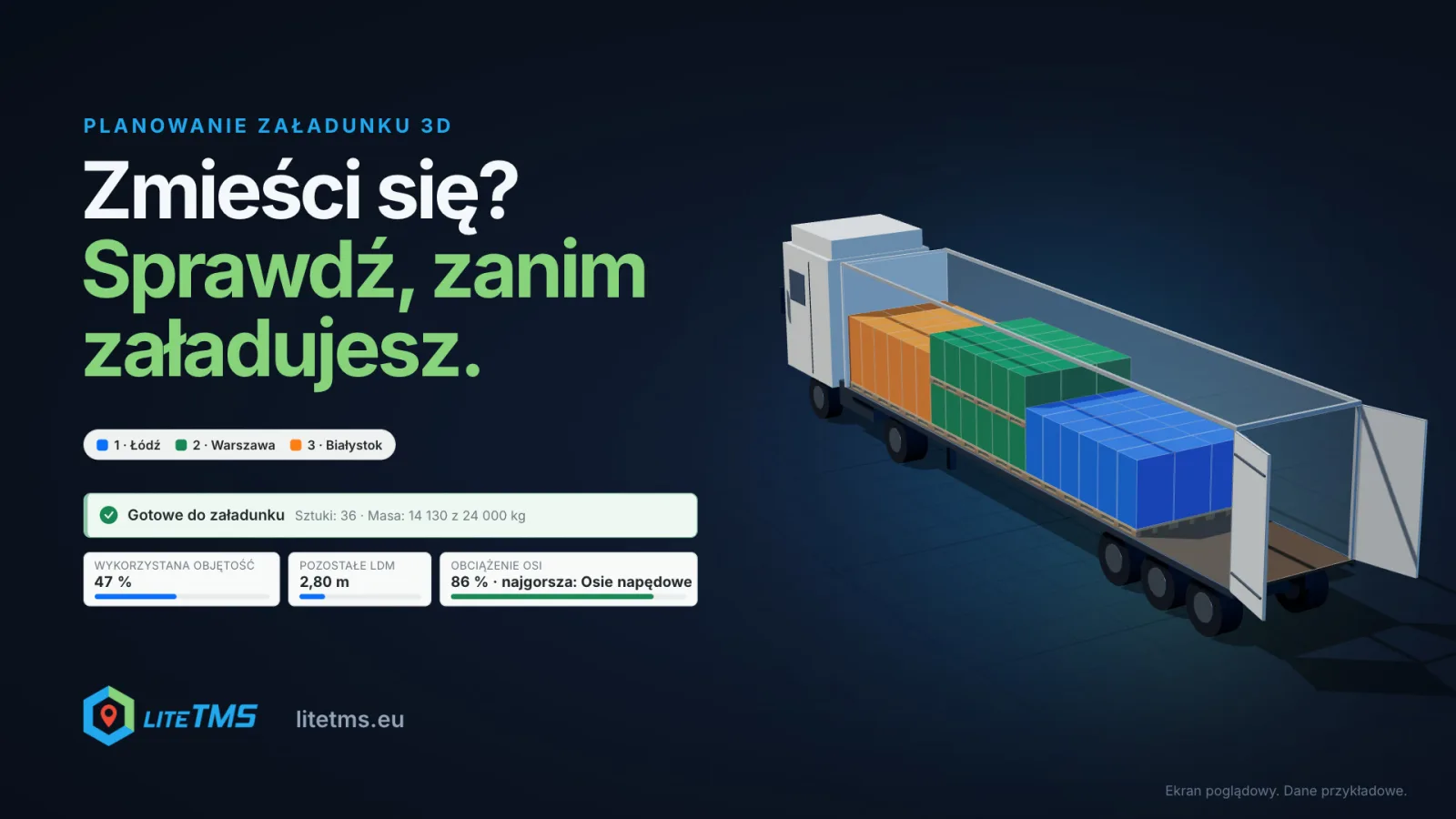
The 3D Load Planning module shows how the cargo will fit in the vehicle before anyone starts loading. The plan lives in the order: it takes the cargo, the unloading stops and the assigned vehicle from it, arranges the load in unloading order and shows the axle loads, the centre of gravity and the loading metres still free. When it is done, you prepare a PDF with the loading order for the driver and the warehouse. The result is only as accurate as the dimensions and weights you enter.
The film is narrated in Polish and runs just under a minute.
Will it fit?
Everyone who plans transport asks that question. Without a plan, the answer arrives at the loading dock, when the truck is already parked at the warehouse and the last few pallets have nowhere to go. What is left is finding a second vehicle or calling the customer to say that part of the goods will travel later.
With full EUR pallets a calculator is enough. The trouble starts with mixed loads: different heights, cartons that can go in two layers, pallets nothing may stand on, and three drops that each want their goods by the doors. 3D load planning moves that question earlier, to the office, while you are still working on the order.
The plan is built inside the order
When the module is on, the order gets a 3D Load Plan tab. The plan takes the cargo, the stops and the vehicle assigned on the Route tab from the order, so nothing is typed twice. The name, weight, quantity and drop of every cargo line come from the order and stay in sync. In the plan you add what the order does not say: the dimensions of one unit, the stacking rules and the handling. When the customer adds pallets or changes the route, the plan follows the order.
If no vehicle is assigned yet, the plan calculates on a standard 13.6 m curtainsider and says so. You can confirm the plan and prepare the PDF only once a real vehicle or a chosen cargo space is set. There are more than twenty ready-made cargo spaces, including a panel van, box vans, a rigid truck, a BDF swap body, curtainsider, mega and box semi-trailers, a jumbo road train, 20, 40 and 45 ft sea containers and air freight containers.
The load arranges itself, in unloading order
The arrangement is recalculated with every change, with no separate button. The colours in the 3D view are the unloading stops. The goods for the first drop stand nearest the doors so they come off first, and the goods for the last drop travel at the front wall. If goods can be moved around at a stop, you tick that and the rule no longer applies there.
The planner also follows the rules every warehouse knows. Nothing goes on a unit marked "Nothing on top", fragile goods travel on top, and a line that must stand on the floor never lands on another unit. Goods in the same group stand together so they come off together. The planner checks whether a unit fits through the door opening and takes into account whether you load from the rear, the side or the top. Lines marked "Must load" go on first.
Axle loads and centre of gravity before the truck leaves
Above the 3D view you see the load on each axle group: the steer axle, the drive axles and the trailer axles. Each figure is the empty vehicle's share on that axle plus the cargo's share, compared with the permissible load from the vehicle record or, when none is recorded, a standard limit. Next to it are the gross combination weight and a centre-of-gravity assessment that tells you whether the load sits too far to one side or too high.
When the front of the trailer gets too heavy, the automatic arrangement can move the whole load back so that no axle group is overloaded. The planner then tells you how much space is left at the front wall and reminds you to block that gap before departure. Without cargo weights and axle limits there is no assessment, and the planner says what is missing.
How much space is left
The tiles above the plan show the volume used, the weight and the free space. One tile switches between remaining volume, remaining floor area and loading metres (LDM), the length of floor still free across the full width. When the cargo takes only a small part of the space, LiteTMS suggests a smaller cargo space it would fit in, for example a rigid truck instead of a full combination.
When something does not fit
Units that did not fit are shown separately, with their count in the status strip. For each one the planner answers "Why?": no space left, the payload or an axle limit would be exceeded, the unit does not fit through the doors, or it would block the unloading order. Below that it suggests what to do: place the unit by hand, relax the rule that blocks it, or choose a larger cargo space. In a plan made on its own, outside an order, you can move the rest of the cargo to a second vehicle with one click.
Manual changes obey physics
You can drag any unit in the 3D view. It snaps to the places where it can stand, and where it cannot, the planner tells you why at once, for example that fragile goods are underneath or that it would reach above the roof. The R key turns the selected unit by 90°, and one shortcut undoes any change. The Play the loading sequence button shows, unit by unit, in which order the goods go into the vehicle.
A PDF for the driver and the warehouse
When the plan is ready, Prepare the PDF for the driver creates a loading instruction. It holds the cargo space details, a summary with the gross weight, axle loads and centre-of-gravity assessment, the stops in unloading order, loading steps with a small drawing for each step, top, side and rear views with every unit's number, the cargo list with each unit's position, and sign-off lines for the person who loads, the person who checks and the driver. The colours in the PDF match the screen, so a pallet that is orange in the office is orange on the dock.
The PDF prints in the dispatcher's interface language by default, or in one of 41 document languages you pick. A language that is not translated yet prints in English. The latest version is filed with the order's documents, and the driver sees it in LiteTMS Mobile once you switch on Visible to driver for the file.
How to switch the module on
3D Load Planning is a paid module in the LiteTMS module marketplace with a 7-day free trial. You see the monthly price there before you switch it on. If you do not cancel during the trial, the first month is charged when it ends. The order tab and the plan list appear once the module is active. You will also find it on the feature list.
The planner is only as accurate as the data it gets: it needs the real dimensions and weights of the cargo and the vehicle's axle limits. It is a planning aid, not a guarantee of safe or legally compliant loading, so the arrangement and the securing of the goods still need checking on site.
Not using LiteTMS yet? Get in touch and bring an order where something did not fit; we will plan it together.
Questions people ask
- Does the 3D load plan arrange the cargo by itself?
- Yes. The arrangement is recalculated with every change to the cargo, the stops or the cargo space. You can then move any unit by hand, and the planner checks whether it can stand there.
- Where does the planner get the cargo and the vehicle from?
- From the order. The 3D Load Plan tab takes the cargo lines, the stops and the vehicle assigned on the Route tab, and you add the dimensions and stacking rules in the plan.
- Does the planner check axle loads?
- Yes, when the cargo space has axle limits recorded and the cargo lines have weights. It shows the load on the steer, drive and trailer axles, the gross combination weight and a centre-of-gravity assessment.
- Will the driver get the load plan on the phone?
- The latest PDF of the plan is filed with the order's documents. The driver sees it in LiteTMS Mobile once you switch on Visible to driver for the file.
- Does a load plan guarantee safe loading?
- No. It is a planning aid based on the dimensions, weights and limits you enter. The arrangement and securing of the goods still need checking on site.
- How much does the 3D Load Planning module cost?
- It is a paid module with a 7-day free trial. Its monthly price is shown in the module marketplace before you switch it on.
Keep in touch
Make room for better reads.
Choose LiteTMS as a preferred source to find more of our articles on Google.
Choose LiteTMS on GoogleConfirm your choice on Google · Opens in a new tab