
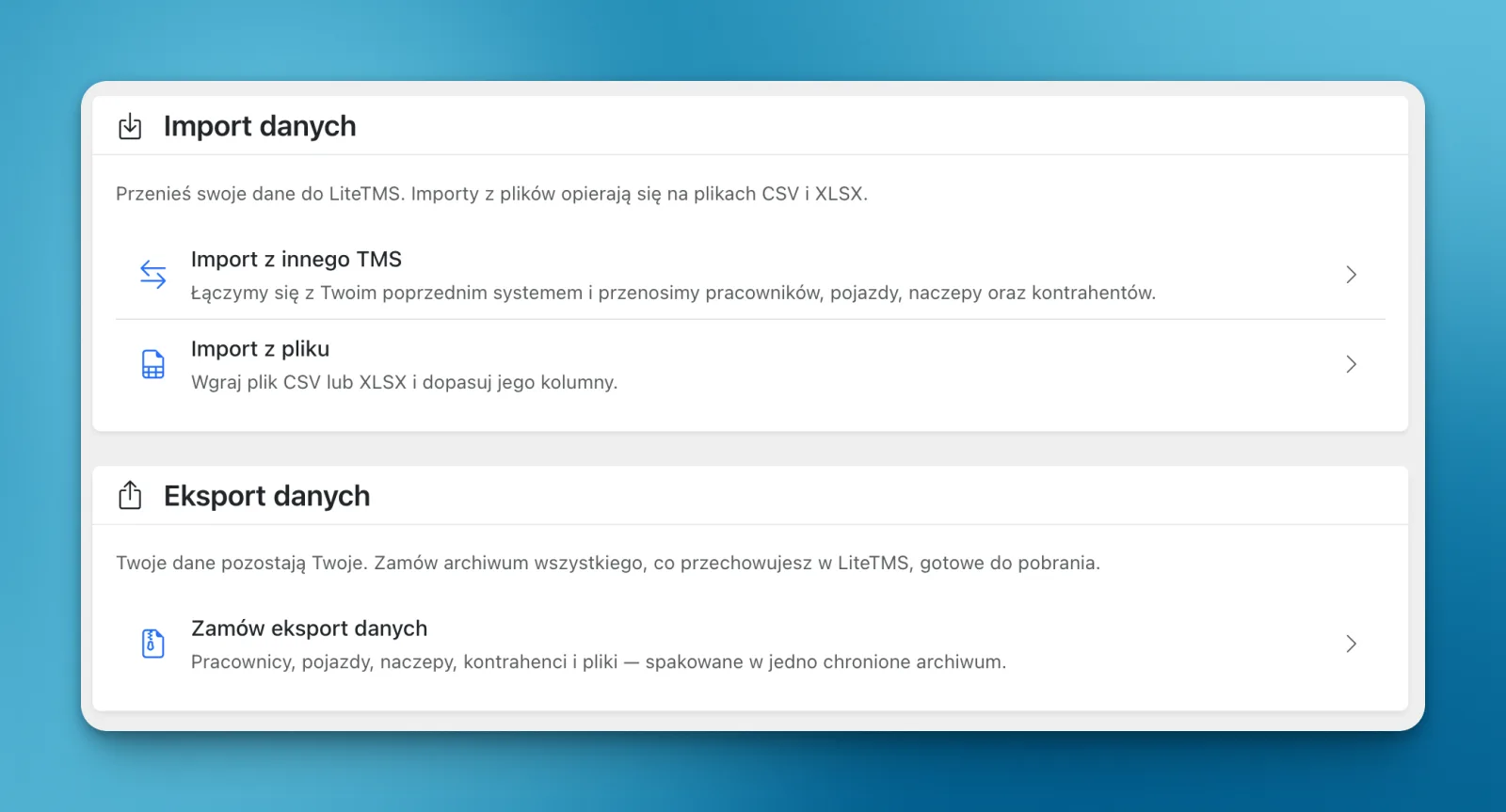
You can start switching to LiteTMS by importing employee, vehicle, trailer and contractor records from a CSV or XLSX file. Match the columns, review the data and confirm the import. You can also request an export of those records as a protected archive from settings, so you can bring your data in and take it with you when needed.
Trying another TMS shouldn't mean retyping your records
You might want to try a different system while your existing TMS already holds your fleet and contractor records. Opening a new account is the easy part. Entering those details again is the work you want to avoid.
We built the file importer to help with that first step. If your current system exports the supported records to CSV or XLSX, you can use that file to populate LiteTMS. The scope depends on the fields available for the record type you select. The importer checks those fields before saving them.
You can start with one set of records and check the result before moving more. That gives you a way to try the import without changing how the whole company works at once.
Upload a file, then choose where its columns go
In settings, open Data import and choose Import from file. Upload a CSV or XLSX file and select the type of records you want to add.
Next, match the spreadsheet columns to LiteTMS fields. A column containing vehicle registration numbers, for example, belongs in the registration number field. Your old system's column headings don't have to match ours.
Before you save anything, the preview shows which rows are ready and which will be skipped. You can review errors and duplicates, then confirm the import to add valid records.
You can stop after a month
LiteTMS has no minimum term or requirement to commit for years. If you decide to stop after a month, we don't add a fee for leaving. You still pay for the use you've already incurred.
Charges reflect the resources and services you use. The panel shows rates and usage before they reach an invoice. Orders and contractors are free and unlimited.
Your company should be able to take its data elsewhere
We believe a company should be able to choose another TMS without having to fight for its own records. That's why settings now includes an option to request a data export alongside the import tools.
Choose the employee, vehicle, trailer or contractor records you want to export. You can include associated files as well. The records are organised into CSV files inside a ZIP archive protected by a password you set when making the request.
We confirm the request by phone before preparing the archive, to protect company data from an unauthorised download. A larger export can take several hours to prepare. Once ready and released, the archive is available to download from the panel.
Planned next: automatic imports from selected TMS platforms
You can already submit a request for our team to help migrate data from another TMS. That form starts a migration request.
We plan to extend this with an automatic importer for selected systems. The intended flow is to enter your login details, select the records you want to transfer and start the import in a few clicks.
For now, start by checking whether your current system can export one of the supported record types as CSV or XLSX. You can use that file to work through the importer and review the result in LiteTMS.
Questions people ask
- What can I import into LiteTMS from a spreadsheet?
- The CSV/XLSX importer in settings supports employee, vehicle, trailer and contractor records. Match columns to the available fields, review the preview and confirm to save valid records.
- Can I stop using LiteTMS after one month?
- Yes. There is no minimum term or fee for leaving. You pay for the resources and services you use.
- How do I export my company data from LiteTMS?
- Request an export in settings, choose the supported records and any associated files, and set an archive password. After confirming the request by phone, we prepare a ZIP archive with structured data and make it available to download from the panel.
- Can I already log into another TMS and import automatically?
- Automatic imports with scope selection for selected TMS platforms are planned. Today, you can import CSV/XLSX files yourself or submit a migration request to the LiteTMS team.
Keep in touch
Make room for better reads.
Choose LiteTMS as a preferred source to find more of our articles on Google.
Choose LiteTMS on GoogleConfirm your choice on Google · Opens in a new tab