
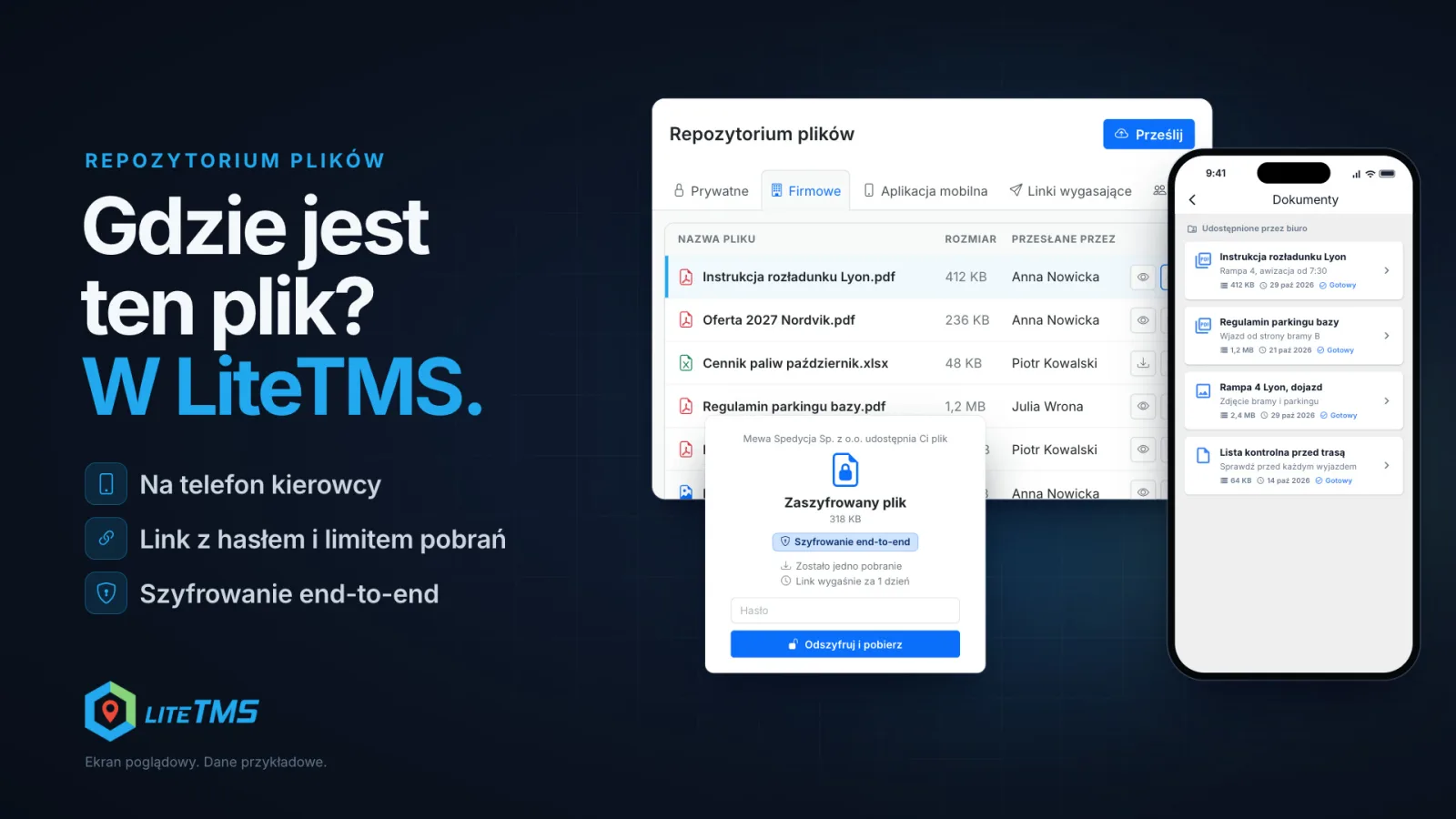
In LiteTMS your company's files live in one place: the File Repository. It holds private files, company files and shared team spaces. From there you can send an instruction straight to a driver's phone by picking the vehicle they drive, give a client a link that stops working after a set time or number of downloads and can ask for a password, and encrypt a confidential file end to end in your browser before it ever reaches LiteTMS. LiteTMS never receives that file's password.
The film is narrated in Polish, with Polish captions.
The same file in five places
The unloading instruction for Lyon arrived from the customer by email. Someone forwarded it, someone dropped it into a chat, someone saved it to their desktop as "instruction_final", then fixed the booking time and saved "instruction_final_v2". The driver got one of those versions, and the next day writes to ask for it again because they can't find it. And they ask which one is current.
Contracts and quotes go the same way, only with more at stake: a file with your rates or company details keeps travelling in attachments nobody deletes. The File Repository doesn't ask for a new habit. It only asks that the file has one place it leaves from.
One repository: private files, company files and team spaces
You'll find the File Repository in the side menu. It has a few tabs:
- Private: files only you can see.
- Company: files for everyone with access to the repository, such as price lists, yard rules, insurance policies or document templates.
- Spaces: shared areas for chosen people, such as "Dispatch" or "Billing". You create a space, name it and pick its members, and each space gets its own tab.
Add files by dragging them in or with Upload: PDFs, photos (JPEG, PNG, WebP), Word documents and spreadsheets (CSV, XLS, XLSX), up to the size limit your company sets. Each file can have a category, and you can search the list by file name or by the person who added it. Role permissions decide who may upload, edit, delete and share files.
An instruction straight to the driver's phone
The Mobile app tab sends a file to LiteTMS Mobile. You add one file, a title and a description such as "Ramp 4, booking from 7:30". You can set when the file becomes available and when it expires. Then you choose who gets it: all drivers or selected ones, all vehicles or selected ones, all trailers or selected ones.
Picking the vehicle is the handy part. You don't have to remember who is driving PO 7315K today: the file goes to the drivers currently assigned to that vehicle or trailer.
The driver finds the file in LiteTMS Mobile under Documents, in the Shared by the office section. The app downloads it on its own when it syncs with the office, and a downloaded file shows "Ready". It stays on the phone, so it also opens where there's no signal. New files and changes still need an internet connection.
When the instruction is out of date, unpublish it or remove it from the app. The assigned phones delete it at their next sync, and the driver sees "Removed by office" next to it.
A link for a client, with an expiry, a download limit and a password
Every file in the repository has a Share button. It creates a link you set up with three fields:
- Link Expires After: 1, 6 or 24 hours, 3, 7 or 30 days, or never.
- Max Downloads: for example 3. Leave it empty for no limit.
- Password Protection: type your own or generate one with a click.
Copy the link and send it however you like. The password is best sent separately, for example by text message. A recipient who enters the wrong password too many times has to wait before trying again. The share window lists the file's active links, and you can revoke any of them.
Expiring links and end-to-end encryption
Sometimes you need to send a file once and don't want it lingering anywhere afterwards. That's what the Expiring links tab is for. You add one file and decide when the link stops working: after a number of downloads (1 to 100) or after a time (5 minutes to 30 days), whichever comes first. Then you choose the protection:
- Anyone with the link can download the file.
- Password protected: the recipient also needs a password you send separately. After five wrong tries the link locks for 15 minutes.
- End-to-end encrypted: the file and its name are encrypted in your browser before they are sent.
With end-to-end encryption LiteTMS stores only encrypted data. It never receives the password, so neither we nor anyone else can open the file or reset the password. The recipient types the password on the link's page, and only their browser decrypts the file. That cuts both ways: if the password is lost, the file can't be opened, which is why the form asks you to confirm you understand. The password needs at least 8 characters, and LiteTMS can suggest a strong one. Encryption requires a secure connection (https).
You can also be notified of every download. When the link ends, the file is deleted from LiteTMS: straight away after the last allowed download, or within 15 minutes once the time runs out. You can end a link early yourself, too. Ended links stay on your list for another 30 days.
The administrator sees every link
In the admin panel, the File Repository shows all of the company's files, including those added in orders and in vehicle or employee records. It also lists every active share link and every expiring link, and the administrator can switch any of them off at once. Files encrypted end to end can't be opened by anyone there, the administrator included. A deleted file can be restored under Recently Deleted until the retention period runs out.
What's included in the price
The File Repository is part of LiteTMS and needs no separate module. Files use your company's storage: some storage is included, and each GB above it is billed at the rate shown in the panel.
Register your company, put one instruction into the repository and send it to a driver's phone by picking the vehicle. Prefer to go through it with us? Get in touch.
Questions people ask
- How do I send a file to a driver's phone in LiteTMS?
- In the File Repository, open the Mobile app tab, add the file with a title and choose drivers, vehicles or trailers. The driver finds it in LiteTMS Mobile under Documents, Shared by the office, and choosing a vehicle shares it with the drivers currently assigned to that vehicle.
- Can the driver open the file without signal?
- Yes, if the app has already downloaded it: a downloaded file stays on the phone. New files and changes arrive once the phone is connected to the internet.
- How do I share a file with a client using a password?
- Click Share on the file, set when the link expires, optionally a download limit, and type or generate a password. It's best to send the link and the password separately.
- What does end-to-end encryption mean in LiteTMS?
- The file and its name are encrypted in your browser before they reach LiteTMS, and only the recipient's browser decrypts them once the password is entered. LiteTMS never receives the password, so it can't open the file or recover a lost password.
- Does a file from an expiring link stay on the server?
- No. When the link ends, the file is deleted from LiteTMS: straight away after the last allowed download, or within 15 minutes once the time runs out.
Keep in touch
Make room for better reads.
Choose LiteTMS as a preferred source to find more of our articles on Google.
Choose LiteTMS on GoogleConfirm your choice on Google · Opens in a new tab