
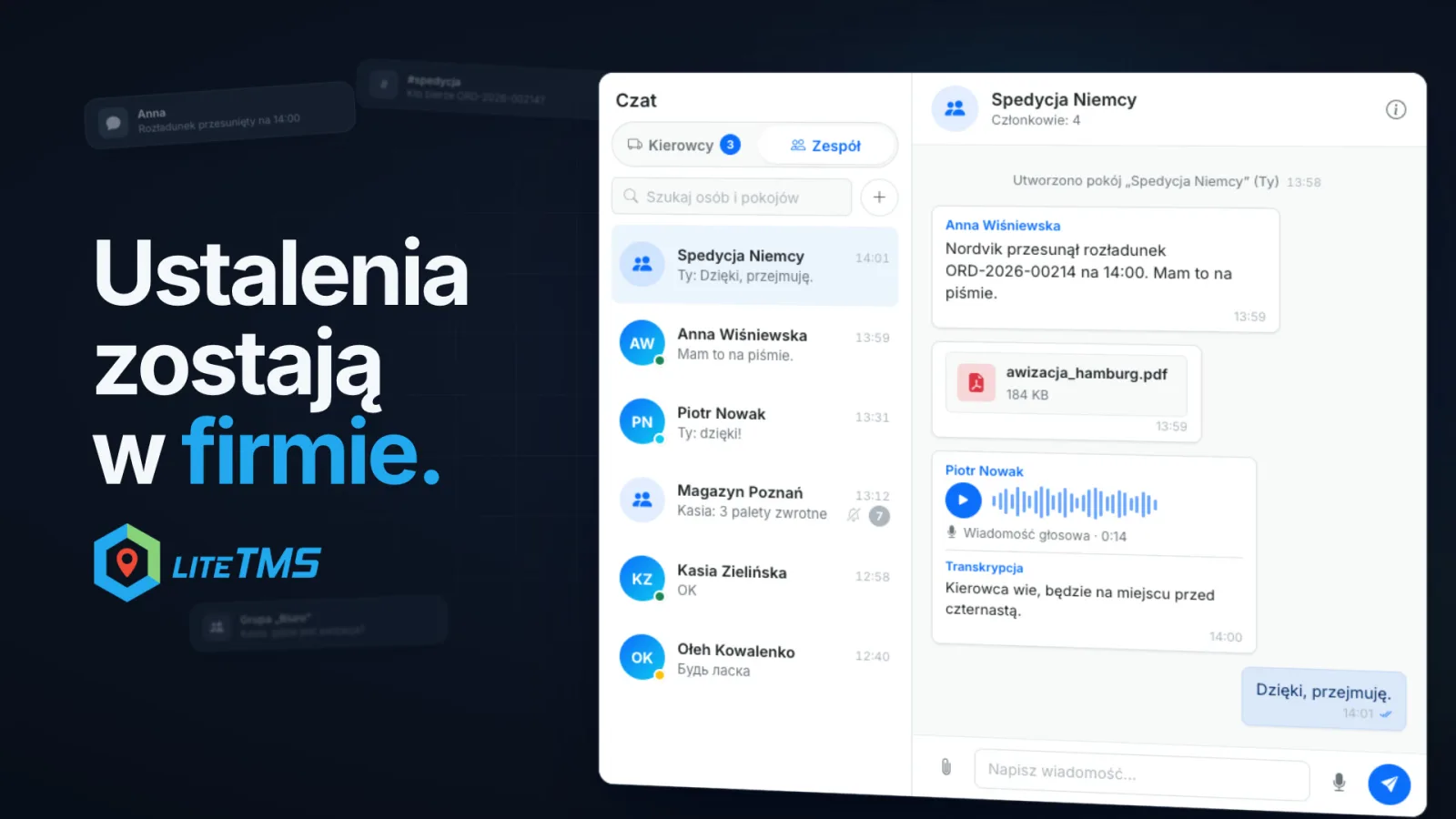
LiteTMS has a team chat for the office. Colleagues can message each other directly or set up rooms, for example one for a market, a client or the warehouse, and share texts, PDFs, photos and voice notes in them. The conversation stays in your company's TMS, a click away from the orders, instead of on private phones and in separate messaging apps.
The film is narrated in Polish. Its screens are illustrative and the data is sample data: order ORD-2026-00214, the people and the rooms do not exist. The narrator is a synthetic AI voice, which the film says at the start and at the end.
Why office agreements end up outside the TMS
Forwarding runs on quick messages. The client moved the unloading to 14:00. Who takes the Hamburg load? Where is the delivery notice? In many transport offices these messages go through WhatsApp, Slack or Discord, often from private accounts.
Those apps are good at chatting. The trouble starts when an agreement matters a day later. It sits on one person's phone, in a thread the rest of the office cannot open. When that person is on leave or off shift, colleagues call around to find out what was promised to the client, and nothing connects the conversation to the company's system.
Colleagues and rooms on the Team side of the chat
Open the chat from the assistant bubble in the bottom-right corner of the portal, or press Ctrl+K (⌘K on a Mac) and choose Team chat. The switch at the top has two sides: Drivers for conversations with your drivers, Team for the office. Messages on the Team side stay between office staff, and drivers never see them.
The Team list shows your colleagues and your rooms. A dot on each person's picture shows who is online, and an open conversation also shows when that person was last active. You can start a direct conversation with anyone in your company who has chat access.
A room is a group conversation you set up yourself. Click New room, type a name (up to 80 characters), tick the colleagues who should be in it and click Create room. A room holds up to 100 members. Whoever creates it becomes its admin and can add or remove people and rename the room. Any member can mute a room or leave it, and if the last admin leaves, the member who has been in the room longest takes over.
Members see the room's whole history. When you add a colleague later, they can read what was agreed before they joined. Anyone who leaves or is removed loses access.
Files, voice notes and translation in the same thread
A room works like the rest of the LiteTMS chat. You can send a photo, a video, a PDF or an audio file (one file per message, with an optional caption), or record a voice note of up to five minutes. Voice notes are transcribed, so a colleague who cannot play audio right now can still read them.
Any message or transcript can be translated with one click into a language your company has enabled. If the company switches on automatic chat translation, colleagues' messages in another language are translated into each reader's languages as they arrive; your own messages are never translated for you. We wrote more about this in the article on chat translations. Translation and transcription are AI services billed by usage, and attachments count toward your file storage.
The same conversations in LiteTMS Mobile
Office users who sign in to LiteTMS Mobile get tabs for drivers and for the team there as well. The same colleagues and rooms appear, and a room can also be created from the phone. With notifications switched on, a new message in a room shows a push with the room's name and the sender, without the message text. A muted conversation sends no notifications and does not add to the unread count. The driver side on the phone is described in the post about driver chats in the mobile app.
If your team's agreements live on private phones today, get in touch. We will show you team chat on an order like the ones you handle every day.
Questions people ask
- Can drivers see messages in LiteTMS team chat?
- No. Team chat is only for your company's office users. Conversations with drivers stay on the Drivers side of the same chat.
- How many people can be in a team chat room?
- Up to 100. The person who creates the room becomes its admin and can add or remove members and rename the room.
- Does someone added to a room later see the earlier messages?
- Yes. Room members see the whole history, so a colleague who joins later can read what was agreed. Anyone who leaves or is removed loses access.
- Can I use team chat on my phone?
- Yes. Office users have a team tab in LiteTMS Mobile with the same colleagues and rooms, and can create rooms there. Push notifications show the room name and the sender, not the message text.
- Is team chat a separate paid module?
- No. Team chat is part of LiteTMS, and access comes from the chat permissions in a user's role. Translation and voice-note transcription are AI services billed by usage, and attachments count toward file storage.
Keep in touch
Make room for better reads.
Choose LiteTMS as a preferred source to find more of our articles on Google.
Choose LiteTMS on GoogleConfirm your choice on Google · Opens in a new tab