
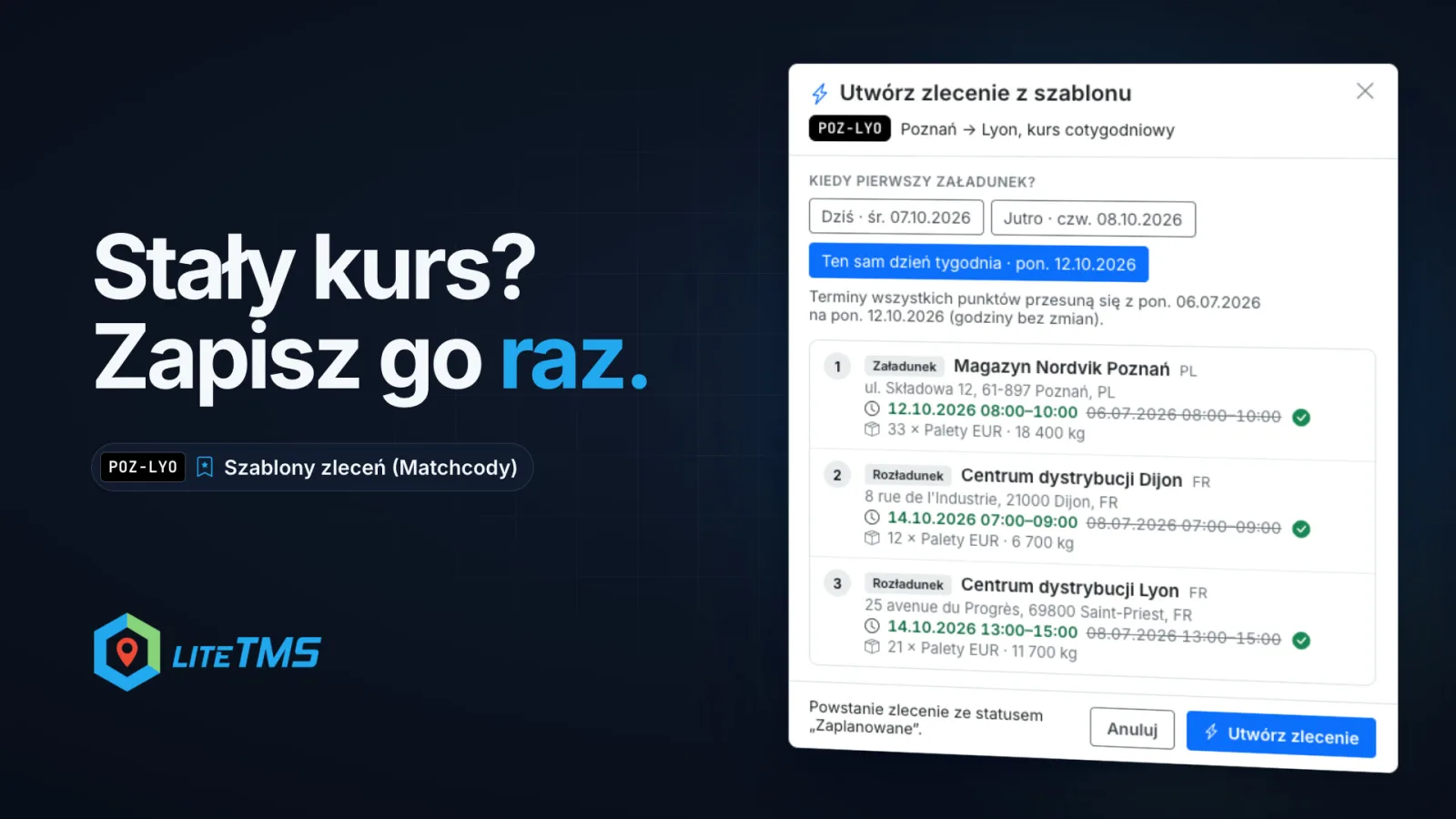
Order templates (Matchcodes) is a LiteTMS module that turns a real transport order into a template. The template keeps the route with its cargo, the crew, the documents, the geofencing settings and the rate. When the next order of the same kind comes in, you create it from the template: pick the day of the first loading and every stop's time window moves to that day. If you only need to repeat an order once, you don't need the module at all: Duplicate order on the orders list does the job.
The video is narrated in Polish, with Polish captions.
The same run every week, the same typing every week
Plenty of transport companies run fixed lanes: the same customer, the same route, the same pallets, often the same driver. A weekly run adds up to 52 nearly identical orders a year. Without a template, each one is either typed in again or copied from last week and patched by hand.
The dates are where that goes wrong. The customer, the addresses and the rate rarely change; the time windows change every single time. Miss one window while copying and the driver is sent an unloading slot from last week. A LiteTMS template deals with both problems: you enter the details once, and the day you pick sets the dates.
A template starts from a real order
You don't build a template from scratch. Open the order that keeps coming back, go to its Templates (Matchcodes) tab and click Save as template. You can also start from the module page, where New template lets you find the order by its number, customer or reference.
Each template gets a short code (matchcode) to find it by, such as POZ-LYO for a Poznań → Lyon run. LiteTMS suggests a code built from the first and last city on the route and a name like "Poznań → Lyon". A code can be up to 32 characters, Polish letters and spaces are fixed for you, and the field tells you straight away whether the code is free.
Then you decide what the template should remember:
- Route: every stop in order, with its address, time window, contacts, notes and cargo.
- Crew: the driver, vehicle and trailer assigned to each leg.
- Documents: copies of the order's files, attached to every order created from the template.
- Geofencing: the route corridor width, the arrival zone radii and the alert rules.
- Finance: net revenue or rate, currency, VAT and payment term.
The customer, payer, order type, priority, contact and notes are always saved. If the order has nothing to save for an option, for example no documents yet, that option is greyed out with the reason next to it. A template is a snapshot of the order at the moment you saved it: later changes to the source order don't reach it until you refresh it yourself.
A new order from a template: pick the day, the dates follow
When the next order of that kind arrives, click Create order. The button is on the template list, on the template's own page and in the order's Templates tab. You can also start on the Add order page: the Find a template box shows your recently used templates as soon as you click into it, and typing a code, name, customer or city finds any other.
The Create an order from a template dialog asks one question first: when is the first loading? It suggests today, tomorrow, the next working day and the same weekday as in the template, and the date field takes any other day. Every stop's time window moves by the same number of days, with the same hours. Before anything is created you see each stop with its new window and, beside it, the template's date struck through. If some windows would already be in the past on the day you picked, the dialog warns you.
In the same dialog you can untick anything you don't want this time, such as the crew because someone else is driving this week. The template itself stays as it is. The dialog also applies the rules every new order follows. A customer or payer on the blacklist needs your explicit confirmation, a customer from a branch you don't work with can't be used, and the crew is only assigned if you are allowed to assign drivers and vehicles.
Click Create order and you get an ordinary order with its own number, which you edit like any other. Its status is "Draft", or "Planned" when the crew is assigned straight away. The new order's Templates tab shows which template it came from.
All your templates in one place
The module page lists every template with its customer, route, what it copies, how many times it has been used and when it was last used. The most recently used templates come first, and the header filters narrow the list by template, customer or route.
Each template has its own page showing exactly what it contains: the stops with addresses and cargo, the crew on each leg and the finance details, the last only for people allowed to see order costs. There you can correct the code, name and description, or use Refresh from the source order when, say, the customer has moved its unloading address. Deleting a template leaves the orders created from it untouched. Separate permissions control who can view templates, who can create orders from them and who can save and change them.
A one-off copy? Duplicate order, no module needed
Not every repeat deserves a template. When you need a single copy, open the order's menu on the orders list (the three dots) and choose Duplicate order. Tick what to carry over: route and cargo, crew, documents, geofencing, finance. The customer, payer, order type, priority, notes and contact are always copied. Click Create copy and a new draft with its own number appears.
Duplicating works in LiteTMS without the Order templates module; all you need is permission to create orders. The copy keeps the original's dates, so you set the new windows in it yourself. Copied documents stay hidden from drivers until you share them, and the crew is proposed again on the copy. A simple rule of thumb: duplicate a one-off, save a regular run as a template.
How to turn Order templates on
Order templates (Matchcodes) is a paid module in the LiteTMS module marketplace with a free 7-day trial. You see the monthly price there before you switch it on. A launch price applies until 31 December 2026, and a subscription started at that price keeps it. If you don't cancel during the trial, the first month is charged when it ends. If you cancel later, your saved templates and their document copies stay in your account.
If you run regular lanes, get in touch and bring an example of one. We'll show you how to save it as a template and create next week's order from it.
Questions people ask
- What is a matchcode in LiteTMS?
- It's the short code of an order template, such as POZ-LYO, up to 32 characters long. You find a template by its code, name, customer or city when you add a new order.
- Does changing the source order change the template?
- No. A template keeps the order as it was when you saved it. To bring new details into it, open the template's page and refresh it from the source order.
- What happens to the dates when I create an order from a template?
- You pick the day of the first loading, and every stop's time window moves by the same number of days, keeping its hours. Before the order is created you see the new windows next to the template's dates.
- Can I copy an order without the Order templates module?
- Yes. On the orders list, choose Duplicate order from the order's menu, tick what to carry over and create the copy. You get a new draft with the original's dates, which you adjust in the copy.
Keep in touch
Make room for better reads.
Choose LiteTMS as a preferred source to find more of our articles on Google.
Choose LiteTMS on GoogleConfirm your choice on Google · Opens in a new tab