
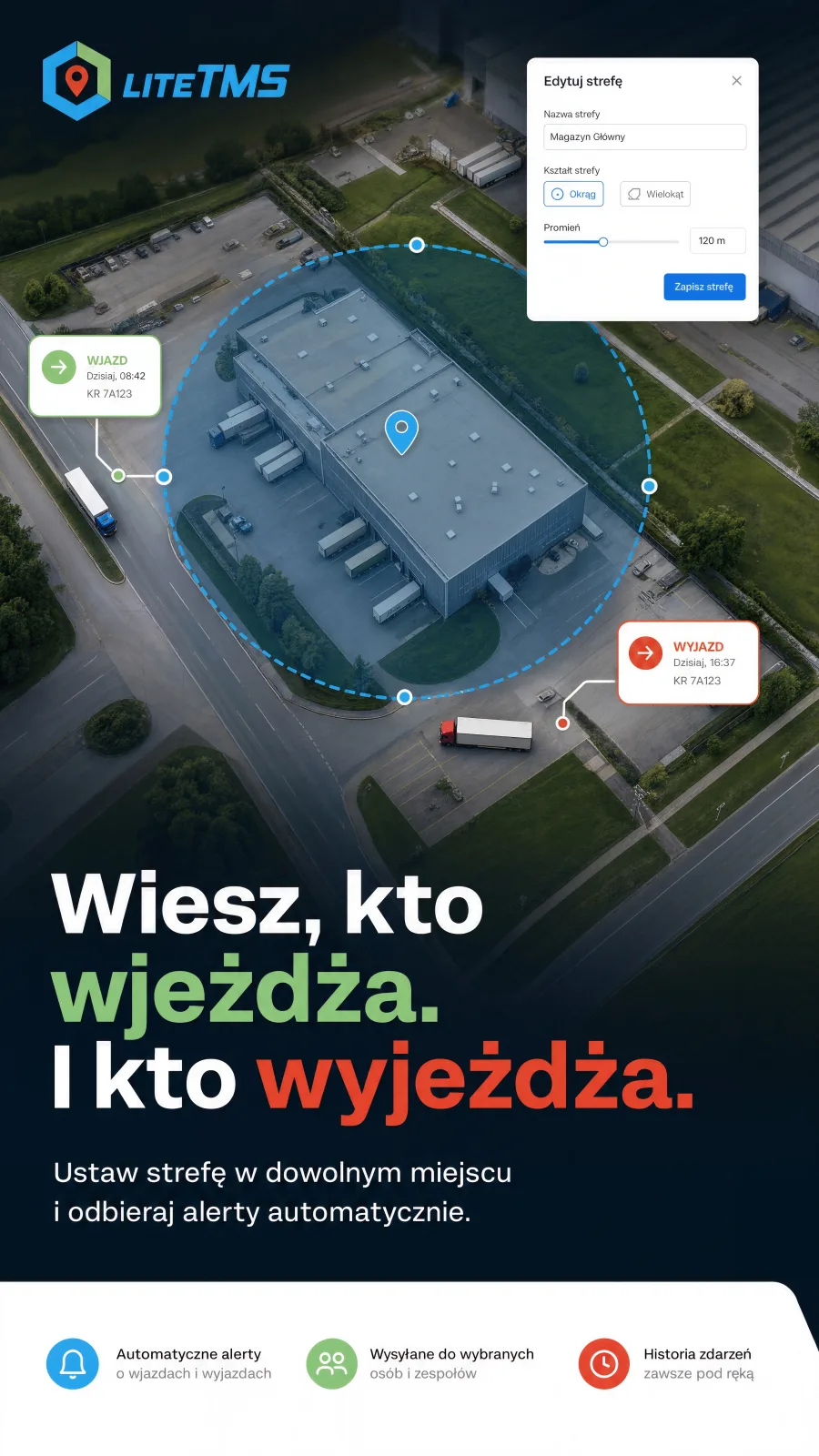
AI-generated visualisation.
The Geofencing module in LiteTMS lets you mark a place on the map that matters to your business and get an SMS, an email or an in-app notification the moment a vehicle with connected GPS enters that zone or leaves it. You draw the zone once, pick who should know, and from then on nobody has to watch the map to find out that a truck has reached the customer.
The question every dispatch office hears all day
"Is he there yet?" It is probably the most common sentence a dispatcher hears. The customer asks, the forwarder asks, the owner asks. Answering usually means opening the map, finding the right vehicle and comparing its position with an address. With four trucks you can do it from memory. With twenty or forty, checking the map becomes the job.
And yet the position is already in the system. The connected GPS sends it regularly. What is missing is someone who reads it at the right moment and tells the right person.
That is exactly what Geofencing does.
A zone is a circle or a polygon, drawn in a minute
Open the module, type a customer's address or the name of a place, and you get a circle with the radius you choose. Match it to the site: a hundred-odd metres for a single ramp, more for a large logistics park. If the site has an awkward shape, click its corners one by one and you get a polygon. No extra map plug-ins.
Every zone has a category: customer site, depot, restricted area, parking, service point, border crossing. You can add your own, say "Truck wash". The category keeps the event history tidy and tells two zones in the same place apart.
A new zone is visible to the whole company. You can narrow it to selected people or roles and give them view or edit rights. Anyone outside that group will not even see that the zone exists.
The alert: entry, exit, or both
You add an alert rule to each zone. Pick what should trigger it: entry, exit or both. Then decide who gets the message and how:
- an SMS to a phone number, for instance the shift manager or the customer,
- an in-app notification for dispatchers in LiteTMS,
- an email to a group of users or to an external address.
An alert does not have to run around the clock. You can set a standing schedule for chosen weekdays and hours, in a time zone you pick. A truck entering the depot at three in the morning might need to wake the owner. The same entry at ten in the morning does not need to bother anyone.
A rule can cover the whole fleet or only selected vehicles. An alert about reaching a particular customer should not fire for every truck that happens to pass by. You point it at the two tractors that serve that lane, and only they count for that rule.
Before the rule goes live, click "Send test". You see who it reached, through which channel, and who was skipped because they have no phone number or no permission. You do not have to wait for a real crossing to discover a mistyped recipient.
What the message actually says
An alert without context is just noise. So every message carries the vehicle registration, the driver's name when one is assigned, the zone name, the event type and the time. If the vehicle is running an order in LiteTMS at that moment, the alert names the order as well. The in-app notification opens the zone on the map in one tap.
Positions are checked roughly once a minute, so from crossing the boundary to the message takes about a minute, plus the short confirmation described below.
How the module avoids false alarms
Anyone who has worked with GPS knows that a position can "jump". The truck sits at the ramp and every other reading lands a few dozen metres away. If each of those twitches counted as an exit and an entry, the dispatcher's phone would never stop buzzing.
So an event is confirmed only once the vehicle has held its new position for a moment. The default is two minutes, and for any zone you can shorten it, lengthen it or switch it off. A brief return inside that window cancels the pending event and nothing goes out.
The start works the same way. When a new zone appears, the system first notes which vehicles are already standing in it. You do not get a flood of "entries" from trucks that have been waiting for loading since morning. Changing a zone's radius or shape is not treated as a crossing either.
And when the depot is being resurfaced and everyone is driving in circles, you mute the rule for a day in one click, or pause all alerts for the zone until a date you choose. Crossings keep being recorded in the history; nobody gets messages about them.
The history answers the questions that come back a week later
Every confirmed entry and exit stays in the zone's history: which vehicle, which driver, when, under which order and how long the stop lasted. When a customer complains about a late delivery, you open the zone around their warehouse and read: entered at 8:42, left at 10:37. No need to call the driver and ask them to remember last Tuesday.
The same data forms a zone visits report: each entry and exit pair on one row, with dwell time, filtered by zone, vehicle and date. Export it to CSV and attach it to the customer's settlement.
The module also tells you plainly when it cannot watch a zone. If a vehicle has no fresh GPS position, you see that next to the zone instead of guessing from the silence.
The one requirement: vehicles with a live GPS position
Geofencing works on positions that already reach LiteTMS from connected GPS. If your fleet has telematics, connect it and the zones start working. Without a position there is nothing to compare, and the module says so honestly next to every zone.
Geofencing is an add-on module with a trial period. Its price and your usage are visible in the panel before anything reaches the bill, and alert SMS and emails are metered like any other message sent from LiteTMS.
Register your company free, draw the first zone around your most important customer and count how many "is he there yet?" calls disappear in the first week.
Questions people ask
- Will I get an SMS when a vehicle enters a zone?
- Yes. On the alert rule you choose an SMS to a phone number, an in-app LiteTMS notification, or an email to a group of users or an external address. Channels can be combined in one rule.
- How fast does the alert arrive after entry?
- Positions are checked roughly once a minute and an event is confirmed after a short hold in the new state, two minutes by default. In practice the message arrives a few minutes after the boundary is crossed.
- Does the alert fire for every vehicle in the fleet?
- By default yes, but you can limit a rule to selected vehicles. A crossing by any other truck is then still recorded in the history, without sending a message.
- Does geofencing work without GPS in the vehicles?
- No. The module compares positions sent to LiteTMS from connected telematics with the zones you have drawn. Without a live position the zone is marked as not monitored.
- Can I switch alerts off for a while without deleting the rule?
- Yes. You can mute a rule for 24 hours in one click, and pause all alerts for a zone until a date you choose. Crossings keep being recorded in the history in the meantime.
Keep in touch
Make room for better reads.
Choose LiteTMS as a preferred source to find more of our articles on Google.
Choose LiteTMS on GoogleConfirm your choice on Google · Opens in a new tab